
⚙️ Administrative Configuration
Waitlist behavior is managed on a session-by-session basis within the Session Manager. This allows for granular control over enrollment workflows depending on the specific needs of the course.
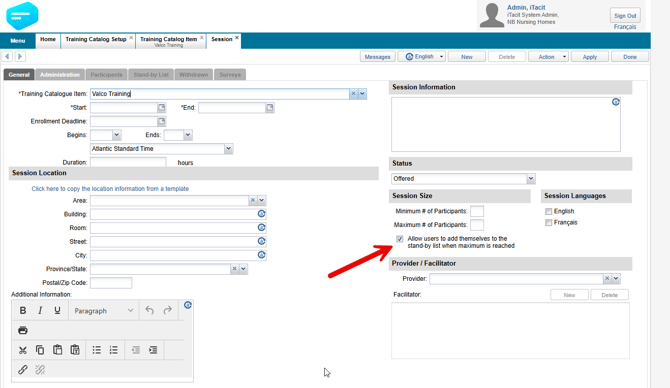
- The Setting: Within the session configuration, administrators can toggle the option: "Allow users to add themselves to the stand-by list when maximum is reached."
- Default State: This setting is enabled by default for all sessions, ensuring that the standard waitlisting workflow is available unless manually disabled. 🛠️
🎓 The Employee Experience
The system provides clear feedback to learners based on the waitlist configuration of a session when it reaches maximum capacity.
When Waitlisting is Enabled (Default):
- On-Screen Status: When a session is full, employees will see a message on screen indicating the session is full.
- Stand-by Option: Despite the session being full, employees can still choose to add themselves to the waitlist.
- Enrollment Status: Once added, the employee will see their status as Enrollment requested within the session. This allows administrators to track demand and manually manage enrollments if spots open up. ✅
When Waitlisting is Disabled:
- Status Messaging: Employees viewing the session details will receive a clear notification: "There is no waitlist available for this session."
- Navigation: To prevent confusion, the system replaces enrollment and stand-by options with a simple Close button, indicating that no further action can be taken for that specific session. 🛑