Advanced Collaboration takes multi-user forms to the next level. It gives users more control over how sections are assigned, reassigned, and tracked - right from within the iTacit app. This feature is ideal for complex workflows where responsibilities shift, visibility matters, and flexibility is key. Think HR approvals, multi-level reviews, or forms that need to be passed between departments.
Example scenario: A manager starts a form and sees a visual breakdown of who’s responsible for each section. They can reassign a section to another team member if someone is unavailable, or track which sections are still in progress.
What Does the Form with Advanced Collaboration Look Like in iTacit?
Section Assignments View
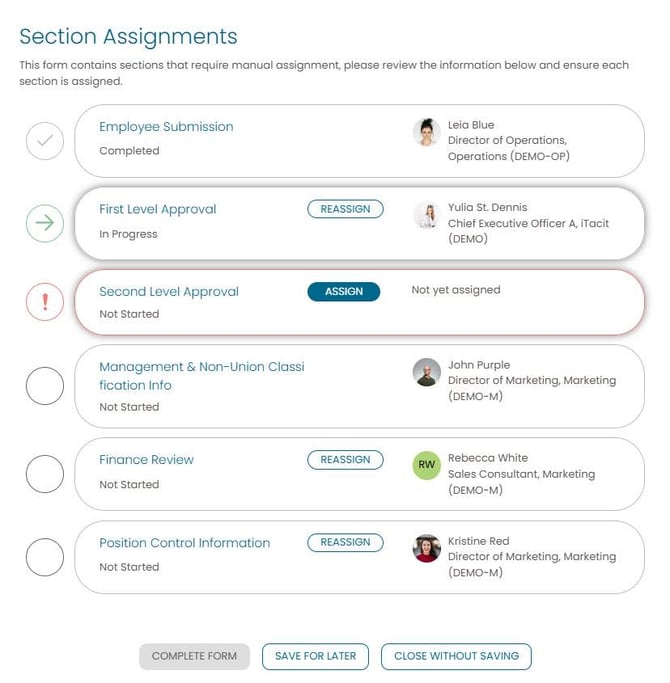
When a form with Advanced Collaboration is in progress, users will see a Section Assignments graph:

-
Click View All to open a detailed view of all sections and their current assignees.
-
Users can:
-
View the sections they are permitted to see
-
Manually assign or reassign sections (if allowed)
-
Track the status of each section
-

Section Assignments Panel During Form Completion
At the bottom of the form (or on the last page for multi-page forms), a Section Assignments panel will appear:
-
Sections are grouped by assignee.
-
Each section shows:
-
Current status (e.g., Not Started, In Progress, Completed)
-
Assigned user or role
-
-
Assignment and reassignment options are shown based on user permissions.

----------------------------------------------------------------------------
Enabling Advanced Collaboration
To activate Advanced Collaboration:
-
Navigate to Menu > Library > Form Builder.
-
Open the form you wish to configure.
-
Go to the Multi-User tab.
-
Check the box labeled Enable Advanced Collaboration for this form.
-
Click the Advanced Collaboration Options button to configure collaboration settings.
Advanced Collaboration Options
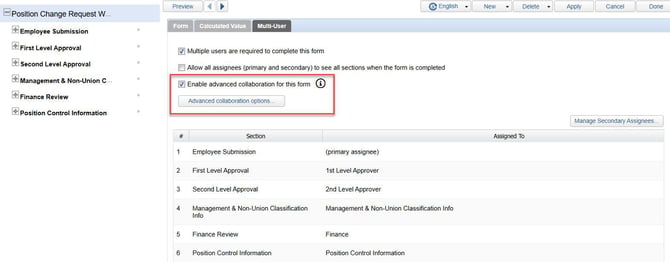
In the Advanced Collaboration Options window, you can configure the following:
-
Allow the primary assignee to view all assignees of this form: Enables the person who started the form to see who is assigned to each section.
-
Allow the primary assignee to assign or reassign sections of this form: Grants the primary assignee the ability to manage section assignments.
-
Assignment Instructions: Add custom instructions to guide users when assigning sections.
Managing Secondary Assignees
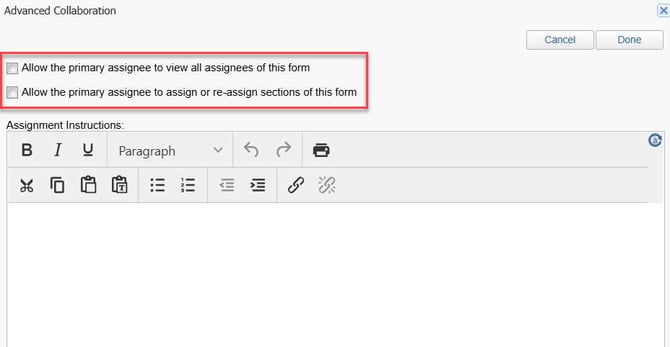
The Manage Secondary Assignees button allows you to configure settings for each Secondary Assignee individually. Additionally, new Advanced Collaboration settings are now available for each Secondary Assignee, offering more flexibility and control over their involvement.
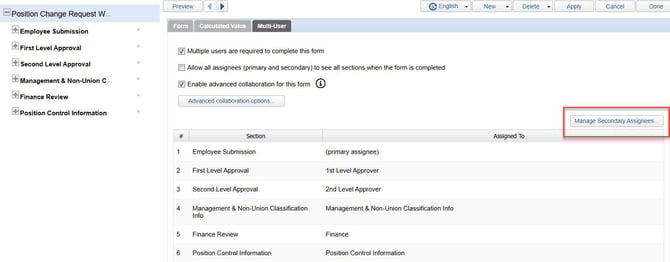
After clicking on the Manage Secondary Assignees button, a Secondary Assignees pop-up window will appear. Each secondary assignee displays in the list to the left of the window. Selecting a secondary assignee from the list will populate the right side of the page.
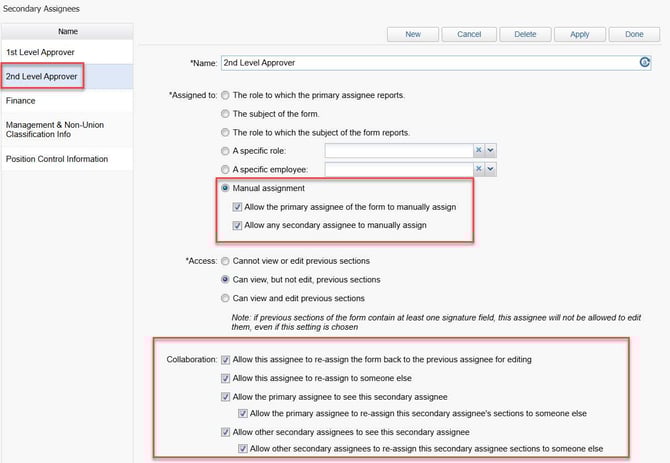
In the example above:
-
Primary Assignee - the user who initiated the form.
-
Secondary Assignees - the 1st Level Approver, the 2nd Level Approver, Management & Non-Union Classification Info, Finance, Position Control Information.
Manual Assignment Options
When configuring the Assigned To settings for a secondary assignee, a new option, Manual Assignment, is available. This feature allows the secondary assignee to be manually assigned by a user during form completion, rather than being automatically assigned based on predefined rules.
These manual assignment options are particularly useful in workflows where the appropriate assignee cannot be determined in advance.
-
Allow the primary assignee to manually assign:
-
Enable this option if you want the primary assignee - typically the user who initiates the form - to manually assign this secondary assignee during form completion.
-
In the above example, the secondary assignee is the 2nd Level Approver. Turning this option on would allow the primary assignee to manually assign the Second Level Approval section to the appropriate employee when they start the form.
-
-
Allow any secondary assignee to manually assign:
-
Enable this option if you want to allow any secondary assignee to manually assign this secondary assignee while completing the form.
-
In the above example, the secondary assignee is the 2nd Level Approver. Turning this option on would allow any of the other secondary assignees to manually assign the 2nd Level Approver section to the appropriate employee when they are completing the form.
-
-
Allow This Assignee to Reassign the Form Back to the Previous Assignee for Editing
-
Reassign the form back to the previous assignee for editing: Enable this option to allow the selected assignee (e.g., the 2nd Level Approver) to return the form to the previous assignee for revisions.
-
This is useful when the current reviewer identifies issues or missing information that require correction before proceeding.
-
For example, if enabled, the 2nd Level Approver can send the form back to the 1st Level Approver for editing.
-
Collaboration Options for Secondary Assignees
The Collaboration area will only be visible if the Allow Advanced Collaboration Options checkbox is selected. These configuration settings allow administrators to define how form sections can be viewed and reassigned by various participants in a multi-user workflow. Each option can be enabled or disabled based on the needs of your organization and the complexity of the form.
-
Allow This Assignee to Reassign Their Section to Someone Else
-
Reassign their section to someone else: Enable this option to allow the selected assignee (e.g., the 2nd Level Approver) to delegate their section to another user.
-
For example, the 2nd Level Approver can reassign their section to a colleague if they are unable to complete it.
-
-
This is helpful in scenarios where the original assignee is unavailable or determines that another team member is better suited to complete the section.
-
-
Allow the Primary Assignee to See This Secondary Assignee
-
Be visible to the primary assignee: Enable this option to allow the primary assignee (typically the user who initiated the form) to view the sections assigned to this secondary assignee (e.g., the 2nd Level Approver).
-
This setting provides transparency into the workflow and helps the primary assignee track progress.
-
If disabled, the section will be hidden from the primary assignee’s view.
-
-
Allow the Primary Assignee to Reassign This Secondary Assignee’s Sections
-
Be reassigned by the primary assignee: Enable this option to allow the primary assignee to reassign the sections originally assigned to this secondary assignee to another user.
-
For example, the primary assignee could reassign the 2nd Level Approver’s section to another qualified user.
-
-
This is useful when the primary assignee needs to redirect responsibilities due to changes in availability or workflow requirements.
-
-
Allow Other Secondary Assignees to See This Secondary Assignee
-
Be visible to other secondary assignees: Enable this option to allow all secondary assignees (e.g., the 2nd Level Approver, Finance) to view the sections assigned to this secondary assignee.
-
This setting promotes visibility and coordination among team members.
-
If disabled, the section will be hidden from other secondary assignees.
-
-
Allow Other Secondary Assignees to Reassign This Secondary Assignee’s Sections
-
Be reassigned by other secondary assignees: Enable this option to allow other secondary assignees to reassign the sections assigned to this secondary assignee to another user.
-
For example, the 1st Level Approver, HR, or Finance could reassign the 2nd Level Approver’s section if necessary.
-
-
This is beneficial in collaborative environments where multiple users may need to manage or redirect tasks.
-
Configuration Outcomes: Management and Finance Sections
This section outlines how the Advanced Collaboration settings were applied to the Management and Non-Union Classification Information and Finance sections of the form to achieve the specific visibility and reassignment behaviors observed earlier in the lesson.
Management and Non-Union Classification Information Section: Secondary User Configuration
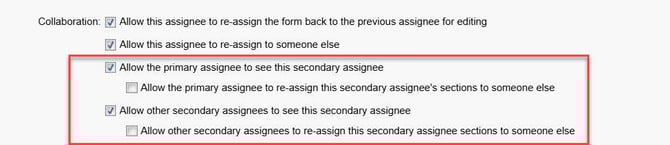
In this configuration, the Management and Non-Union Classification Information section was made visible to both the primary assignee and the 1st Level Approver. This was achieved by enabling the following Advanced Collaboration options:
-
Allow the primary assignee to see this secondary assignee
-
Allow other secondary assignees to see this secondary assignee
However, to maintain control over the section’s ownership, reassignment permissions were intentionally restricted. The following options were left disabled:
-
Allow the primary assignee to re-assign this secondary assignee’s sections to someone else
-
Allow other secondary assignees to re-assign this secondary assignee’s sections to someone else
As a result, while the section was visible to key participants, neither the primary assignee nor the Second Level Approver could reassign it.
Finance Section: Secondary User Configuration
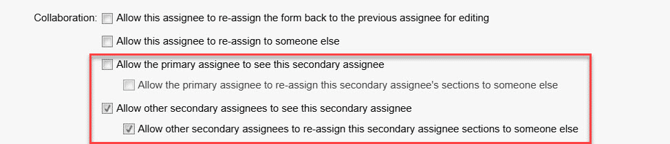
The Finance section was configured with restricted visibility to maintain confidentiality. Specifically, the following option was disabled:
-
Allow the primary assignee to see this secondary assignee
-
As a result, the primary assignee could not view the Finance section at any point during the workflow.
-
However, visibility and reassignment permissions were enabled for other secondary assignees by selecting:
-
Allow other secondary assignees to reassign this secondary assignee’s sections
-
Allow other secondary assignees to re-assign this secondary assignee to someone else
-
This allowed roles such as HR or management to see and redirect the Finance section if needed.
-
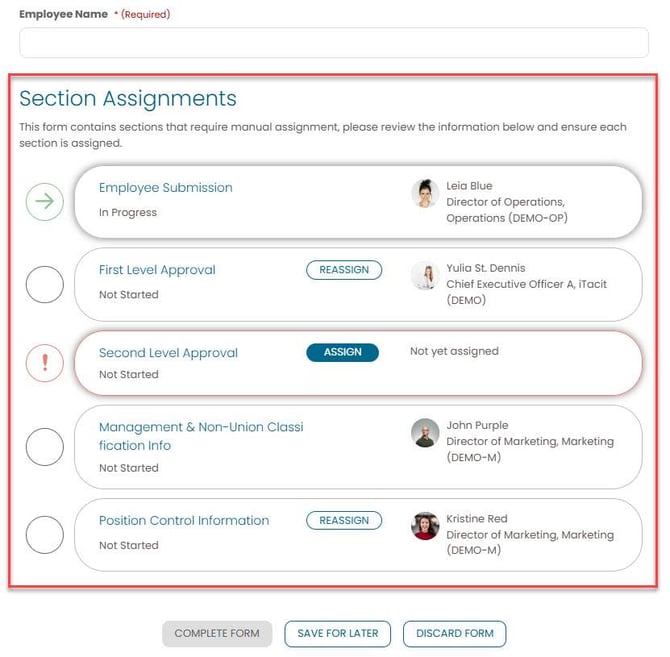
Workflow Example in iTacit
Primary Assignee Permissions: Section Assignment and Visibility
Based on the Advanced Collaboration settings configured for this form, the primary assignee may be able to:
-
View and reassign the First Level Approval section
-
View and manually assign the Second Level Approval section
-
View but not reassign the Management & Non-Union Classification Info section
-
Not view the Finance section at all (hidden by configuration)
-
View and reassign the Position Control Information section
Secondary Assignee Permissions: Section Assignment and Visibility
Based on the Advanced Collaboration settings configured for this form, the secondary assignee may be able to:
-
View but not reassign completed sections
-
View and manually assign unassigned sections (e.g., Second Level Approval)
-
View but not reassign the Management & Non-Union Classification Info section
-
Reassign sections they are responsible for (e.g., First Level Approval)
-
View and reassign the Finance section