Table of Content
1. Assigning Forms Using Submission Manager
2. Assigning Forms from the Form Library Item
3. Assigning Forms from the My Team Menu
---------------------------------------------------------------------------
Once your form is published and configured as a Form Library Item, the next step is to assign it to employees.
Assigning Forms Using Submission Manager
The Form Submission Manager allows administrators to manually assign forms, define subjects, set recurrence, and control due dates.
1. Log in to the iTacit Admin site
2. Go to Menu > Library > Form Submission Manager
3. Click the “Assign” button located at the top of the screen
4. Select one of the following:
- Assign a form to employees: Use this option when the form is intended to be completed by the employee it is assigned to. This is the most direct assignment method and is commonly used for:
- Self-assessments
- Onboarding checklists
- Daily or weekly compliance forms
- Training acknowledgments
- Assign a form to employees about other employees: Select this option when the form is designed to be completed by one employee about another. This is typically used for forms that collect feedback, approvals, or evaluations related to a colleague or direct report. Common use cases include:
- Performance Reviews
- Payroll Change Requests
- Employee Orientation Tracking
- Timecard or Expense Approvals
- Assign a form to employees about an item: Choose this option when the form is used to collect data about a non-person entity, such as a location, asset, or piece of equipment. This is ideal for operational or inspection workflows. Examples include:
- Room or Facility Inspections
- Vehicle Maintenance Checklists
- Equipment Usage Logs
- Safety Audits

In the Assign Forms Tab:
Step 1. Use the dropdown to choose the form you want to assign.
Step 2. Select one or more employees. If assigning about someone else, define both the subject and the assignee.
- Assign the form individually to each employee in the selected groups – Select this option if each of the people who are assignees should complete their own form.
- Assign the form once to the group, to be shared by its members – Select this option if the form only needs to be completed once by a user you make the assignee. This second option allows a form to be ‘pooled’ to a group of people, and any of the people in the group can complete the form. For example, this second option can be used for shift workers, where the form needs to be completed by anyone with a specific role.
Step 3. Decide if the form should automatically recur.
- Select the first option if the form only needs to be completed once.
- Select the second option if you want iTacit to automatically re-assign the form again. The system will use the schedule defined in the Form setup to determine when the form should be re-assigned.
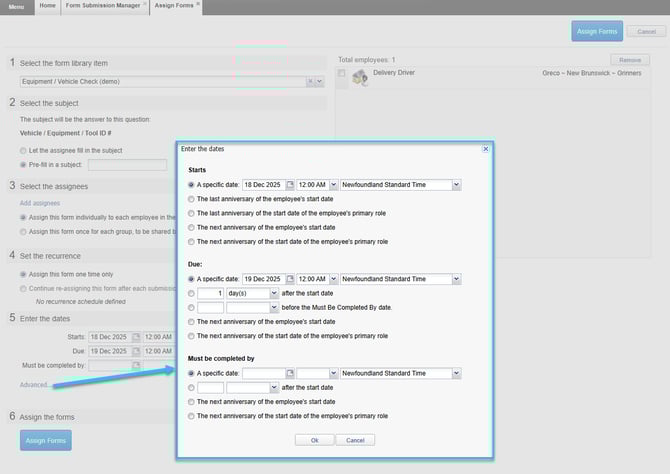
Step 4. Set the start, due, and “must be completed by” dates.
Step 5. Select the Assign Forms button to assign the forms.

The Advanced… option can be used for advanced scheduling, such as setting these dates based on the employee’s start date (ideal for scheduling performance reviews).
---------------------------------------------------------------------------
Assigning Forms from the Form Library Item
iTacit administrators can assign it directly from the Form Library Item screen. This method is ideal for assigning the form to all users who match the targeting criteria, such as role, business unit, or classification, without manually selecting each individual.
-
Go to Menu > Library > Form Library Item
-
Select the form you want to assign
-
Go to Action > Assign to all targeted...

In the Assign Forms Tab:
1. The form is selected from the Form Library Item (default).
2. Select one or more employees.
3. Decide if the form should automatically recur.
-
Select the first option if the form only needs to be completed once.
-
Select the second option if you want iTacit to automatically re-assign the form again. The system will use the schedule defined in the Form setup to determine when the form should be re-assigned.
4. Set the start, due, and “must be completed by” dates.
5. Select the Assign Forms button to assign the forms.

The Advanced… option can be used for advanced scheduling, such as setting these dates based on the employee’s start date (ideal for scheduling performance reviews).
---------------------------------------------------------------------------
Assigning Forms from the My Team Menu
Managers and supervisors can assign forms directly to their team members using the My Team menu in iTacit. This method is ideal for assigning forms like performance reviews, onboarding checklists, or team-specific assessments.
Example Scenario: A manager needs to assign a “New Role Orientation” form to a recently promoted employee.
From the My Team menu:
-
Select the employee
-
Assign the “New Role Orientation” form
-
Set the due date, if applicable
-
The employee will receive the form immediately.
Assigning a Form via My Team (Team Members)
1. Log in to iTacit
2. Go to My Team > Team Members from the main dashboard
3. Choose the employee(s) you want to assign the form to
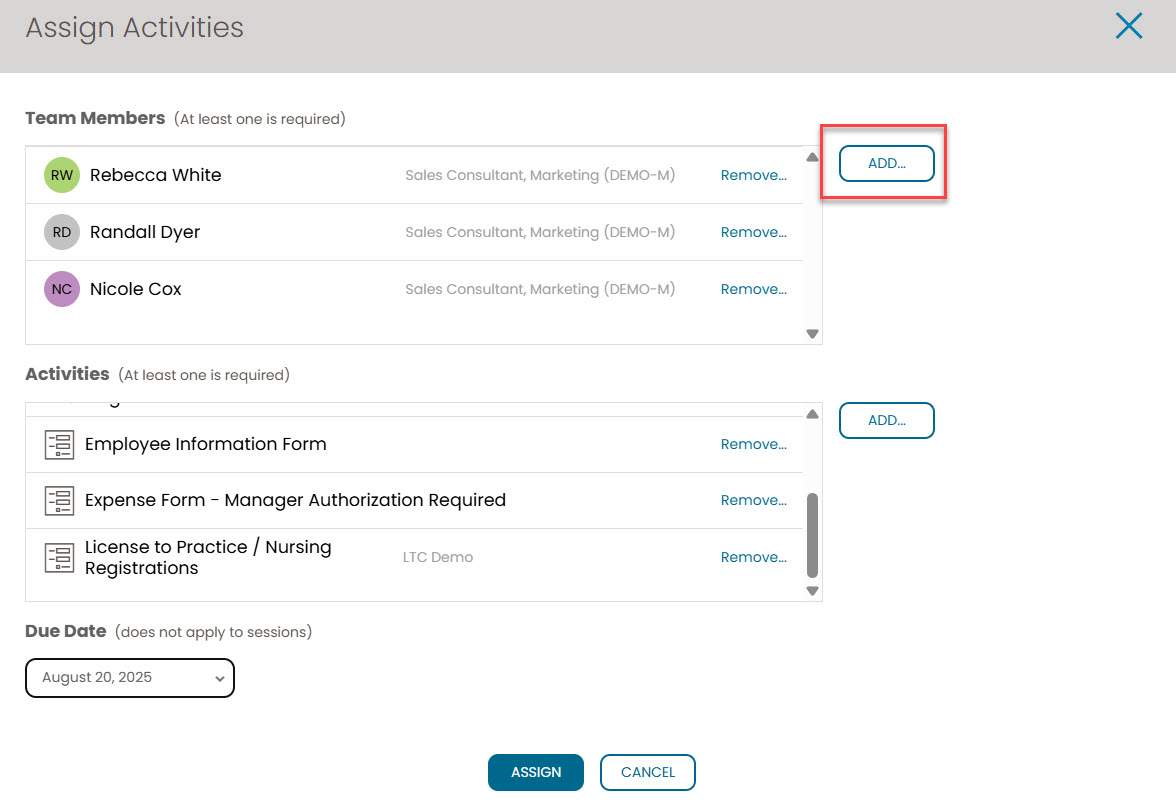
4. Go to Actions > Assign an activity to those selected...
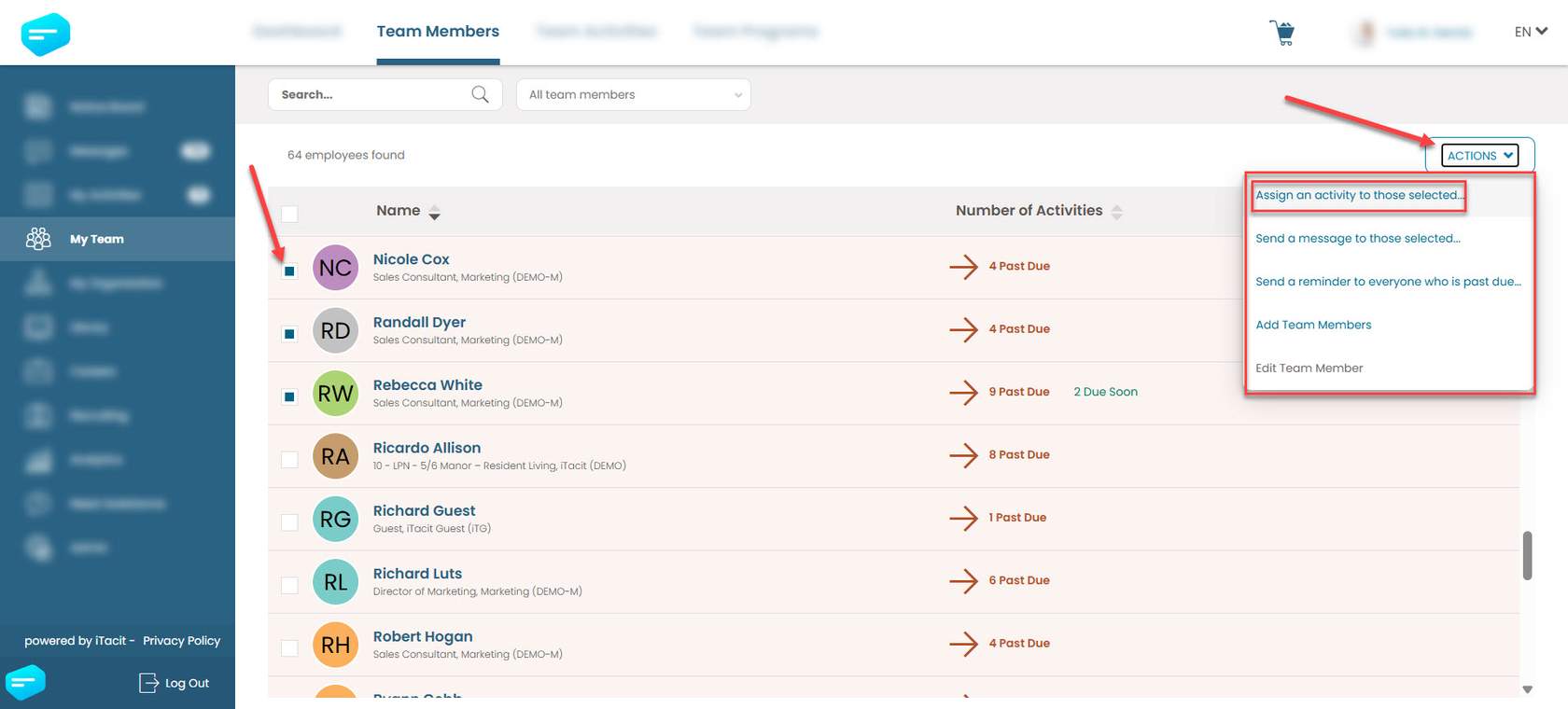
5. Click Add... to assign activities to selected team members
6. Select one or more forms from the list
7. Click Add to add selected forms to the Activities window
8. Select a Due Date (if applicable)
9. Click Assign to assign form(s)

Assigning a Form via My Team (Team Activities)
1. Log in to iTacit
2. Go to My Team > Team Activities from the main dashboard
3. Choose the form(s) you want to assign to your team members
4. Go to Actions > Assign selected activities to team members...

5. Click Add... to select team members
6. Select one or more team members from the list
7. Click Add to add selected team members to the Team Members window
8. Select a Due Date (if applicable)
9. Click Assign to assign form(s)