
This option is used for forms such as Room or Equipment Inspection Forms, Vehicle Maintenance Forms, etc. Essentially, in any form where the data being tracked is about something other than an employee, you would like to be able to search and view the information gathered in an organized manner.
1. Log in to the iTacit Admin site
2. Navigate to Menu > Library > Form Submission Manager
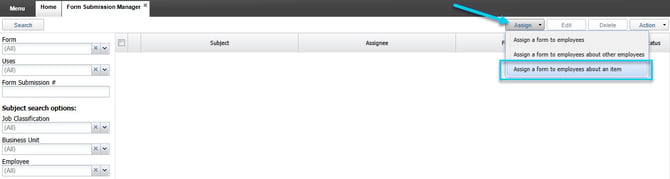
3. Click Assign > Assign a form to employees about an item
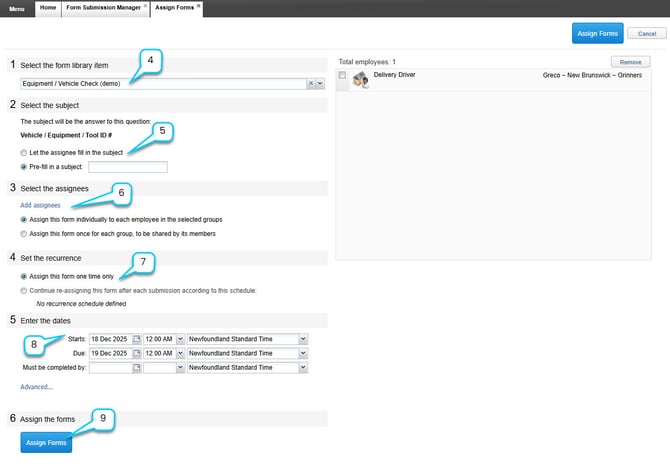
4. At the top of the screen, under “Select the form library item”, use the dropdown to choose the form you want to assign.
5. Select the subject of the form. This determines the asset (e.g., a vehicle) that the form is about. Choose one of the following options:
- Let the assignee fill in the subject – The employee will select the vehicle # when completing the form.
- Pre-fill in a subject – You select the vehicle # now.
6. Choose how the form will be assigned:
- Assign the form individually to each employee in the selected groups – Select this option if each of the people who are assignees should complete their own form.
- Assign the form once to the group, to be shared by its members – Select this option if the form only needs to be completed once by a user you make the assignee. This second option allows a form to be ‘pooled’ to a group of people, and any of the people in the group can complete the form. For example, this second option can be used for shift workers, where the form needs to be completed by anyone with a specific role.
7. Decide if the form is:
- Assigned one time only: Select the first option if the form only needs to be completed once.
- Assigned repeatedly according to a schedule: Select this option if you want iTacit to automatically re-assign the form again. iTacit will use the schedule defined in the form setup to determine when the form should be re-assigned.
8. Define the time frame for completing the form:
- Start Date – When the form becomes available.
- Due Date – When the form is due.
- Must be completed by – Final deadline.
9. Click the Assign Forms button at the bottom left to finalize the assignment.
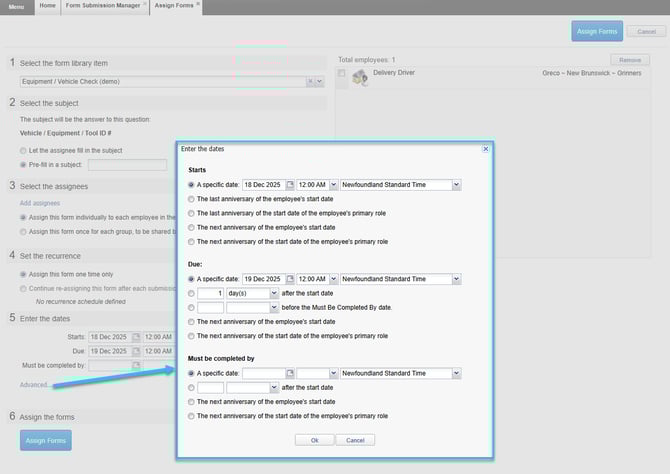
The Advanced… option can be used for advanced scheduling, such as setting these dates based on the employee’s start date (ideal for scheduling performance reviews).
The form will now be assigned to the selected employee with the chosen subject and dates.