
This option can used for forms such as Performance Reviews, Payroll Change Forms, Employee Orientation Forms, Employee Timecard Forms, Employee Expense Forms, etc. In other words, any form where the data being gathered in the form is about an existing employee and you would like to have that data tracked on the Employee’s record.
1. Log in to the iTacit Admin site
2. Navigate to Menu > Library > Form Submission Manager
3. Click Assign > Assign a form to employees about an item

4. Select the form that is to be assigned.
5. Select the employee(s) the form will be about. Selecting multiple employees will result in each employee having their own form that will need to be completed.
6. Select who will complete the form for each employee selected in step 2.
- The role to which each subject reports: Select this option if you want the Manager of each employee to complete the form.
- A specific role: Select this option if a specific role will always complete the form, such as an HR Coordinator, Payroll Specialist, etc.
- A specific employee: Select this option to designate a specific employee by name, such as ‘John Smith’.
7. Decide if the form should automatically recur:
- Assign this form one time only: Select this option if the form only needs to be completed once.
- Continue re-assigning this form after each submission according to this schedule: Select this option if you want iTacit to automatically re-assign the form again, iTacit will use the schedule defined in the Form setup to determine when the form should be re-assigned.
8. Enter the start date, due date, and must be completed by
9. Select the button to assign the forms.
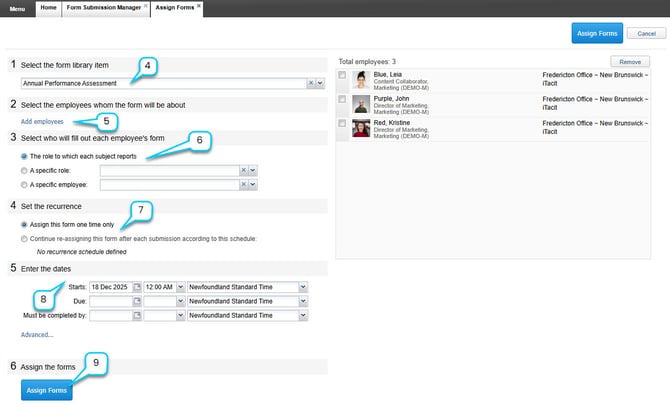
The Advanced… option can be used for advanced scheduling, such as setting these dates based on the employee’s start date (ideal for scheduling performance reviews on initial assignment. In the Performance Form use case to follow, recurrence considerations will be outlined).
