
Assign a Knowledge Program
1. Log in to the iTacit Admin site.
2. Select New and choose one of the two options.
- Knowledge Program
- Multiple Knowledge Programs

Assign a Knowledge Program to One Employee
Use this method when assigning a Knowledge Program to one employee.
1. Click New and select Knowledge Program.
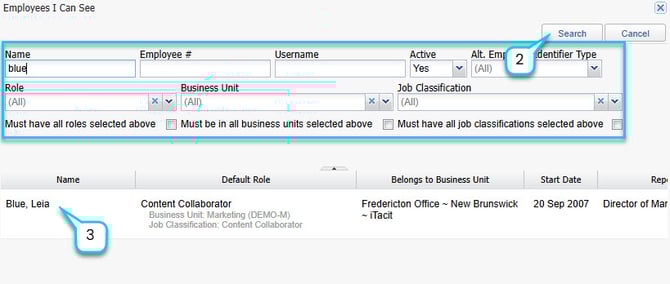
2. Use the Employee Lookup to search for the employee, then select Search.
3. Select the employee from the list that will be populated after you enter your search criteria.
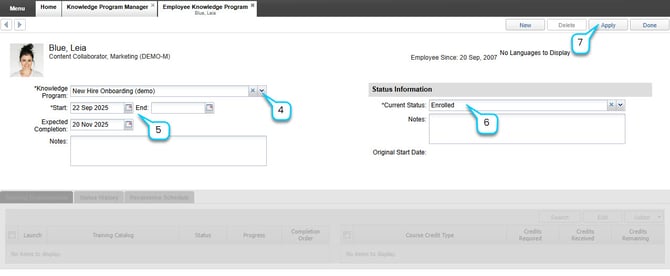
4. Choose the appropriate Knowledge Program from the dropdown.
5. Review or adjust the Start, End, and Expected Completion Dates.
6. Review or adjust Status (auto-populated based on program settings).
7. Click Apply to save and assign.
Assign a Knowledge Program to Multiple Employees
Use this method when assigning a program to a group of employees.
1. Click New and select Multiple Knowledge Programs.
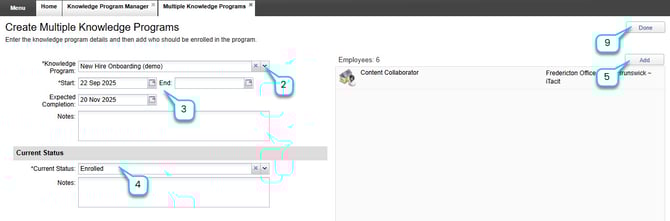
2. Click on the drop-down button by the Knowledge Program. Select your Knowledge Program from the list.
3. Review or adjust the Start, End, and Expected Completion Dates.
4. Review or adjust Status (auto-populated based on program settings).
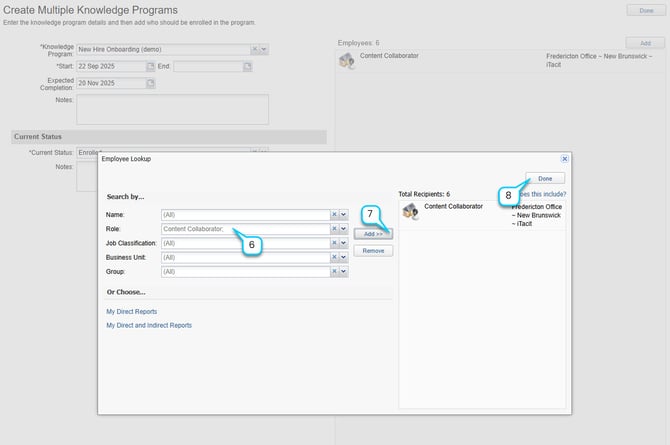
5. Select Add button to look for one or multiple employees. A new window will pop up where you can enter your search criteria for the employees.
6. Use filters such as:
-
Business Unit
-
Job Classification
-
Role
-
Individual Employee
7. Click Add.
8. Click Done.
9. Click Done again to assign the program.
Once assigned, employees will see the Knowledge Program in their My Activities dashboard. They can track progress, view due dates, and access associated training items. Administrators can monitor progress and manage assignments using the Knowledge Program Manager.