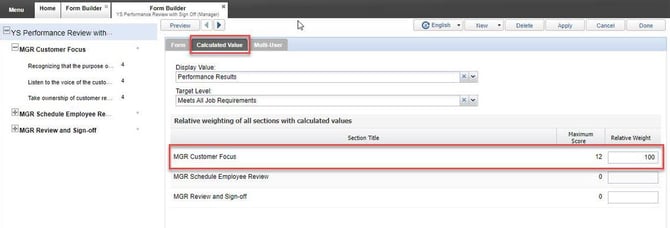
If your form includes evaluations (e.g., performance reviews, assessments, or satisfaction surveys), you’ll want to use the Calculated Value tab. This feature lets you assign scores to responses, define target levels, and apply display labels like “Meets Expectations” or “Needs Development.” It’s a powerful way to automate evaluations, trigger alerts, and make results easier to interpret.
Accessing the Calculated Value Tab
To begin configuring calculated values:
-
Navigate to Menu > Library > Form Builder.
-
Select the form you wish to edit.
-
Click on the Calculated Value tab within the form editor interface.
Configuring Calculated Values
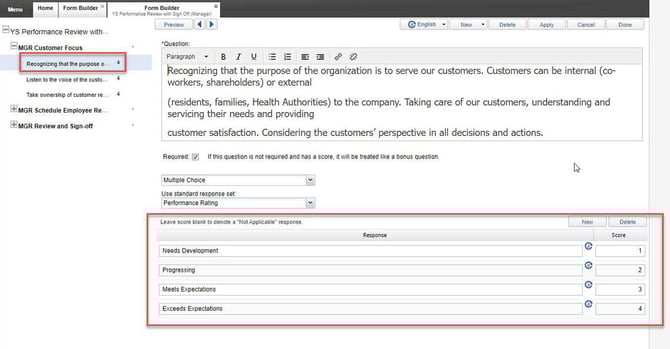
1. Choose a question in the form that will have scored responses.
2. For each response option, assign a numerical score (If not using predetermined standard response with scoring).
Example:
-
Needs Development = 1
-
Progressing = 2
-
Meets Expectations = 3
-
Exceeds Expectations = 4
3. Click on the Form Title (on the left-hand side menu). Navigate to the Calculated Value tab.
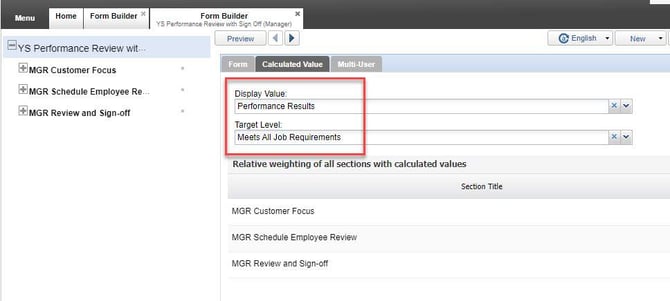
4. Select a Display Value from the dropdown. Select an appropriate display value from the list (e.g., Performance Results).
5. Choose a Target Level that represents the minimum acceptable outcome.
6. Optional: Adjust Relative Weight
-
The Maximum Score is calculated automatically based on the highest score assigned to responses.
-
Use Relative Weight to emphasize the importance of a section.