
Some workflows need more than one person to complete a form - and that’s where Multi-User Forms come in. This feature lets you assign different sections of a form to different users, creating a seamless, step-by-step process. It’s perfect for approvals, reviews, or any workflow that involves multiple roles - like a manager, HR, and an employee.
Example workflow:
-
An employee completes their section of a form
-
The form is routed to their manager for review
-
If needed, the manager can send it back for edits
-
Once approved, it moves to HR for final processing
Accessing Multi-User Configuration
To configure a form for multiple users in the Admin Tools App:
-
Navigate to Menu > Library > Form Builder.
-
Select an existing form or create a new form.
-
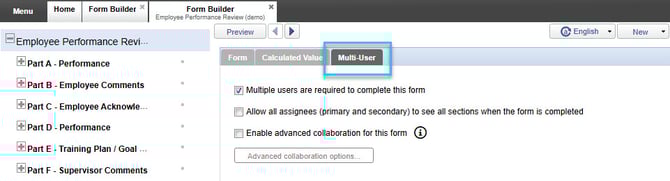
Click on the Multi-User tab.
Enabling Multi-User Functionality
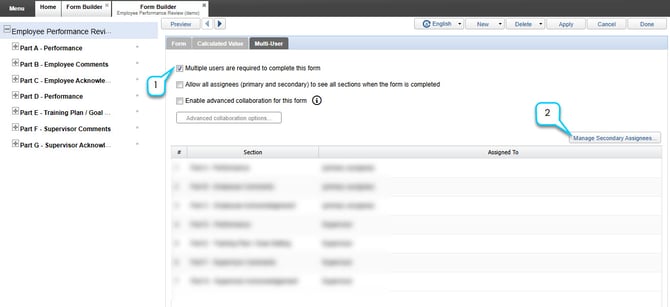
1. Check the box labeled Multiple users are required to complete this form.
2. Click Manage Secondary Assignees to define the Secondary Users who will participate in the form completion process.
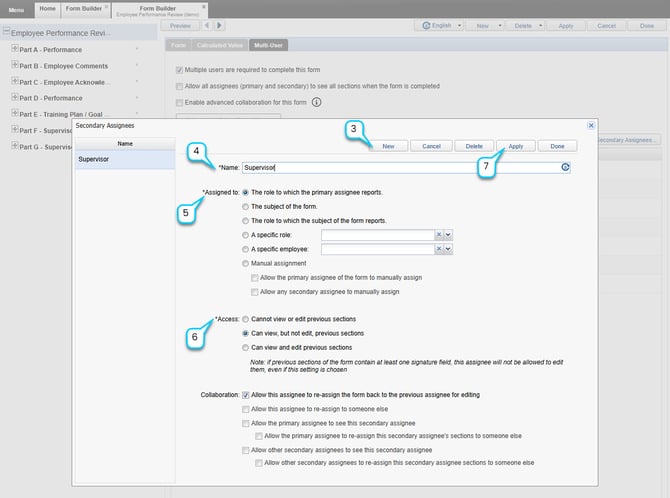
3. Click New to create the Secondary User(s).
4. Enter the Name of the Secondary User (e.g., Manager, HR).
5. You can assign secondary users based on:
-
The role to which the primary assignee reports: The secondary user will be the manager of the employee to whom the form is assigned.
-
The subject of the form: The secondary user will be the employee the form is about. i.e., the employee a payroll change form is about.
-
The role to which the subject of the form reports: The secondary user will be the manager of the employee the form is about. i.e., the manager of the employee whose payroll change form is about.
-
A specific role: The secondary user will be a group of employees who share the same role. i.e., Human Resource Specialist or Payroll Clerk. This option provides the ability to do pool assignments; anyone with that role can complete the assigned section of the form.
-
A specific employee: The secondary user will be a single employee who has been identified by name. i.e., John Doe.
6. Each secondary user can be configured with:
-
Access permissions (view/edit previous sections)
-
Reassignment rights (send form back to the previous user)
7. Click Apply to save changes.
Assigning Sections to Users
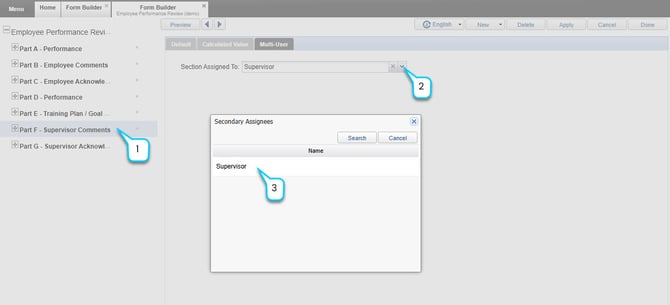
Once all of the Secondary Users are defined, go to each section in the form, to the Multi-User tab, and ensure the section is assigned to the appropriate user.
1. Navigate to each section in the form.
2. Open the Multi-User tab for that section.
3. Assign the section to the appropriate user from the dropdown list.
Additional Notes on Conditional Questions in Multi-User Forms
When using conditional questions in multi-user forms, keep in mind:
-
If all questions in a section are hidden due to branching logic, the section will not be assigned to the user.
-
No notification will be sent for skipped sections.
This can impact workflow routing, so it’s important to test your form thoroughly before publishing.