1. Create a Knowledge Program
2. Add training courses to a Knowledge Program
3. Create phases inside a Knowledge Program
4. Set automatic schedule for a Knowledge Program
5. Add automated notifications to a Knowledge Program
-----------------------------------------------------------------------------
A Knowledge Program is a group of training requirements assigned to employees to be completed within a specified timeframe. These may be set up to complete once all training requirements have been met, such as an Orientation Program, or may be scheduled to recur to provide staff with mandatory yearly training requirements. Automated notifications may also be sent to employees and managers to notify them of knowledge program status changes or upcoming due dates.
1. Log in to the iTacit Admin site.
2. Select Menu > Training > Knowledge Programs Setup.
3. In the Knowledge Program Setup screen select New.
Knowledge Program Tab:
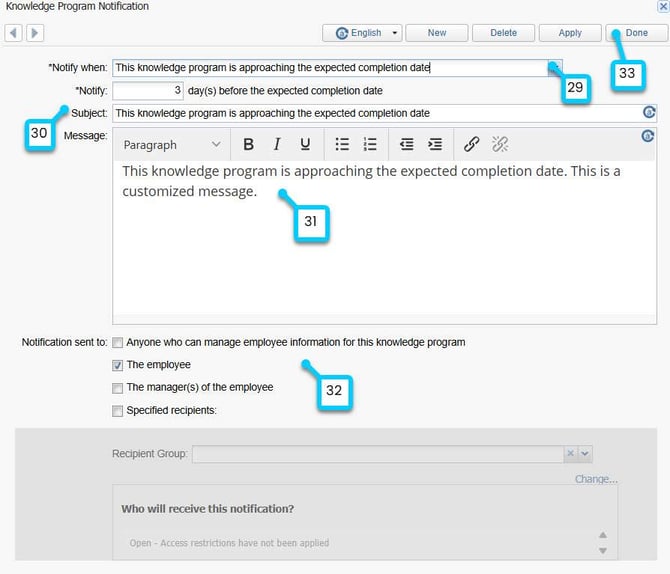
4. Enter a clear and descriptive name in the Name field.
5. Enter a short code in the Abbreviation field. This is used internally for filtering and reporting.
6. Optional: Use the Notes field to document internal comments, version history, or reminders. This field is not visible to learners.
7. Check the Active box to make the program available for assignment or enrollment. If unchecked, the program remains in draft mode.
8. Click Upload Image to add a visual thumbnail or banner. This image will appear in the course library and helps learners identify the program. You can also click Clear Image to remove or replace the current image.
9. Display in Internal Course Library: Check this box to make the program visible to learners browsing available training.
10. Display in My Team and My Organization Views: Check this box to allow managers and team leads to view the program in their dashboards.
11. Check the Enable Self-Enrollment box if you want employees to enroll themselves.
12. Select Apply to save changes.
13. Choose a predetermined permission group by selecting the dropdown arrow beside Permissions OR select Change... to set permissions without a predetermined permission group.
Training Requirements Tab:
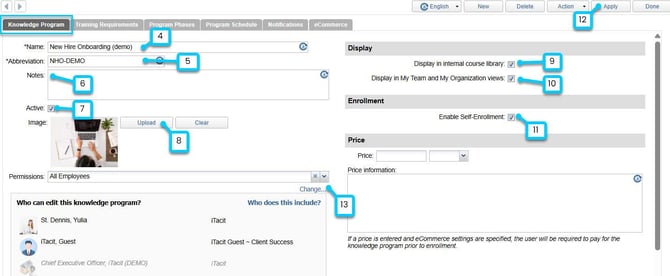
14. In the Training Item section, select New. Select the desired training items to associate.
15. Optional: Arrange content in the desired order to reflect the learning flow.
16. In the Credit Type section, select New. Select the desired credit type to associate if applicable.
17. Select Apply to save changes.
Program Phases Tab:
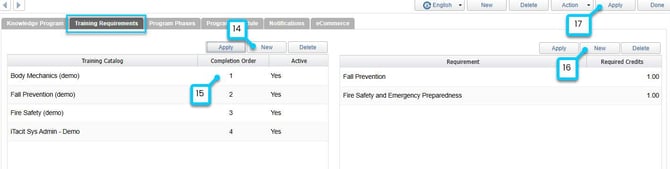
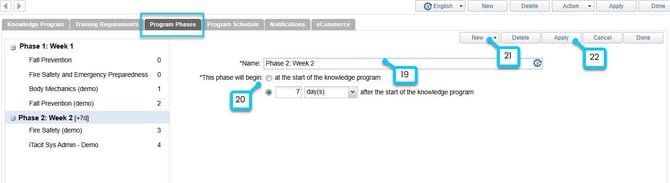
18. Click New > New Phase to begin.
19. Enter a Name of the phase.
20. Start Timing:
-
Option 1: “At the start of the knowledge program”
-
Option 2: “After the start of the knowledge program” with:
-
Numeric offset (e.g., 2)
-
Time unit (days, weeks, months)
-
21. Click New > New Requirement or drag-and-drop existing requirements from the tree. Each requirement includes:
-
Requirement Lookup: Select from the Training Catalog.
-
Completion Order: Determines the sequence within the phase.
22. Click Apply to save changes.
Important: Completion order must respect phase logic. A requirement cannot be placed in a later phase if it depends on a prerequisite in an earlier phase.
Program Schedule Tab:
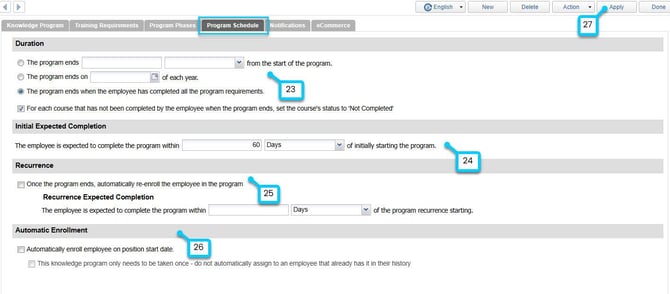
23. Set the Duration of the knowledge program: This section determines when the Knowledge Program officially ends for each employee.
24. Set the Initial Expected Completion: This setting defines how long an employee is expected to take to complete the program after enrollment.
25. If the program needs to repeat (e.g., annually), you can enable recurrence.
-
Enable Recurrence: Automatically re-enrolls the employee once the program ends.
-
Recurrence Expected Completion: Defines how long the employee has to complete the program after it recurs.
26. Automatic Enrollment: This section allows you to automate enrollment based on employment events.
-
Automatically enroll employee on position start date: Ideal for onboarding programs.
-
This knowledge program only needs to be taken once - do not automatically assign to an employee that already has it in their history: Prevents re-enrollment if the employee already completed the program in the past.
27. Click Apply to save changes.
Notifications Tab:
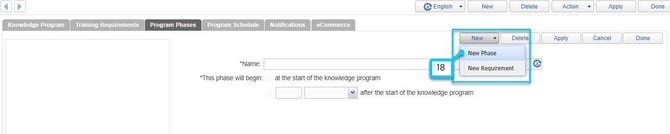
28. Select New to create a new notification.
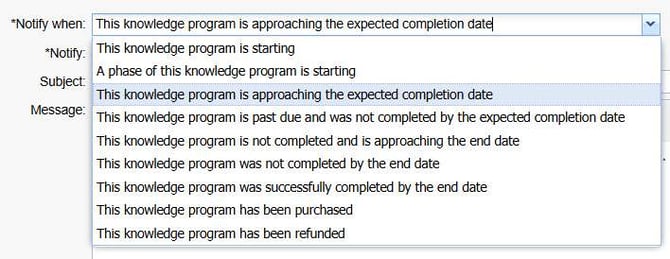
29. In the Notify when field, choose the event that will trigger the notification.
30. Enter a clear and informative subject in the Subject field.
31. In the Message field, write the body of the notification.
32. Under Notification sent to, select who should receive the message:
-
The employee
-
The manager(s) of the employee
-
Anyone who can manage employee information for this knowledge program (from the Permission window)
-
Specified recipients: If using Specified recipients, enter the group name in the Recipient Group field after clicking Apply..
33. Click Done to finish notification.