
Need to make changes to a form that’s already in use? No problem - iTacit’s Form Versioning lets you update forms without disrupting active submissions or losing historical data. Instead of editing a live form, you create a new version. This keeps your workflows stable and ensures users always access the most up-to-date version.
Creating and Publishing a New Version
1. Access the Form Builder
-
Navigate to Menu > Library > Form Builder.
-
Select the form you want to update from the list.
2. Create a New Version
-
In the top-right corner of the form editor, click New > Create new version of this form.
OR
-
In the Versions area, click Create new version of this form.
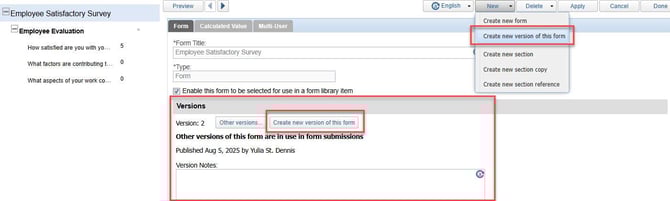
This action duplicates the current version and opens it in edit mode. You can now make changes without affecting the live version.
3. Make Your Edits
-
Update form sections, questions, calculated values, or multi-user assignments as needed.
-
You can also adjust conditional logic, display values, or scoring rules.
4. Publish the New Version
-
Once your edits are complete, click the “Publish this version” button.
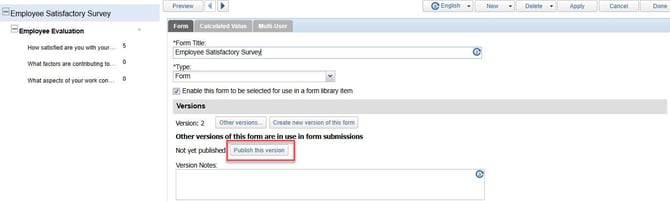
After clicking “Publish this version”, a confirmation window will appear. This step is crucial because it determines how the new version will be applied to form submissions.
You’ll be presented with three options:
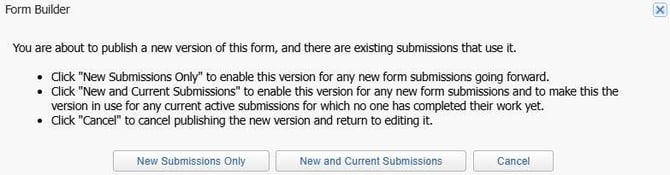
Option 1: New Submissions Only
-
Select this if you want the new version to be used only for future form submissions.
-
Existing submissions will continue using the previous version.
-
This is the safest option when you want to preserve the integrity of in-progress forms.
-
Recommended for most updates, especially when changes are structural or affect workflow logic.
Option 2: New and Current Submissions
-
Select this if you want the new version to be used for both new and current submissions.
-
Any active submissions that have not yet been completed will be updated to use the new version.
-
Use this option with caution, especially if the changes could affect how users interact with the form mid-process.
-
Important: This may impact users who have already started filling out the form. Ensure that changes are compatible with existing workflows.