
Creating an application form involves three key components:
Each component builds on the previous one, allowing for modular and reusable form creation.
Create Standard Questions
Standard questions are the building blocks of your application forms. These questions can be reused across multiple forms and postings.
1. In the iTacit Admin site, navigate to Menu > Recruiting & Onboarding > Application Forms > Standard Questions.
2. Click New, then select the desired question type:
-
Single Line Text
-
Multiple Choice
-
Multiple Select
-
Paragraph
-
Date / Date & Time
-
Numeric

3. Enter the Question text.
4. Assign a Classification keyword to help with searchability.
5. Check the Active box to make the question available.
6. Click Apply to save changes and to enable Permissions.
7. Set Permissions to control who can view or edit the question.
8. Click Apply again to save changes.

9. If your question type is Multiple Choice or Multiple Select, you’ll also need to define Answer Options:
- Click the Answer Options tab.
- Select New and enter each answer.
- Click Apply to save.

Create a Standard Form
Once Standard Questions are created, they may be added to a standard form. Standard forms are collections of questions grouped into sections. Like standard questions, standard forms may be copied and used across career postings.
1. In the iTacit Admin site, navigate to Menu > Recruiting & Onboarding > Application Forms > Standard Forms.
2. Click New.
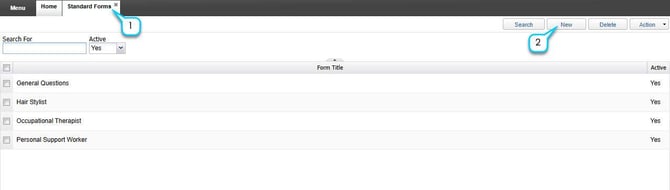
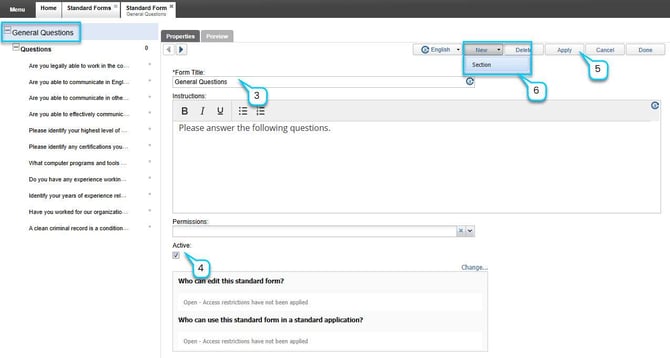
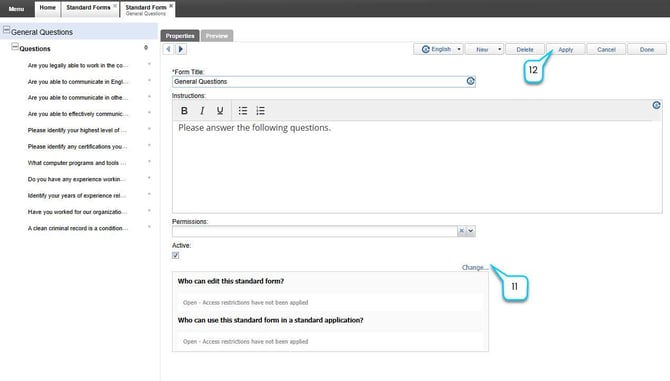
3. Enter the Form Title and Instructions.
4. Check the Active box to make the form available.
5. Click Apply to save changes.
6. Add a Section by selecting New > Section.
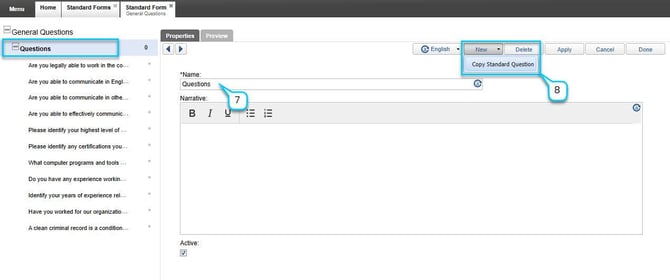
7. Enter the section name and narrative. Save changes by clicking Apply.
8. Within the section, add questions by selecting New > Copy Standard Question.
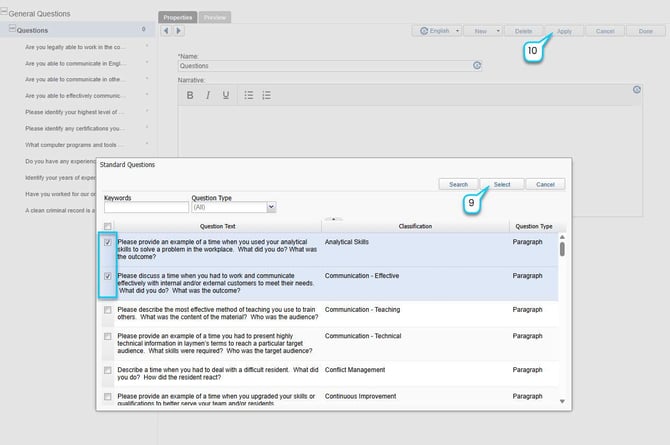
9. Search for and select the desired standard question(s) from the list. Use checkboxes to select more than 1 standard question. Click Select.
10. Click Apply after each addition.
11. Set Permissions to control who can view or edit the form.
12. Click Apply again to save your standard form.
Create a Standard Application
Standard applications are the final product that gets attached to a career posting. They combine one or more forms and define scoring logic.
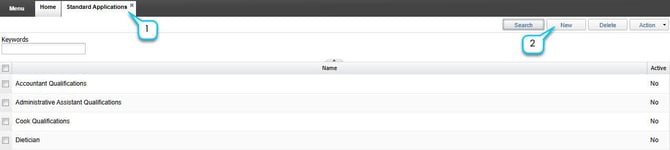
1. In the iTacit Admin site, navigate to Menu > Recruiting & Onboarding > Application Forms > Standard Applications.
2. Click New.
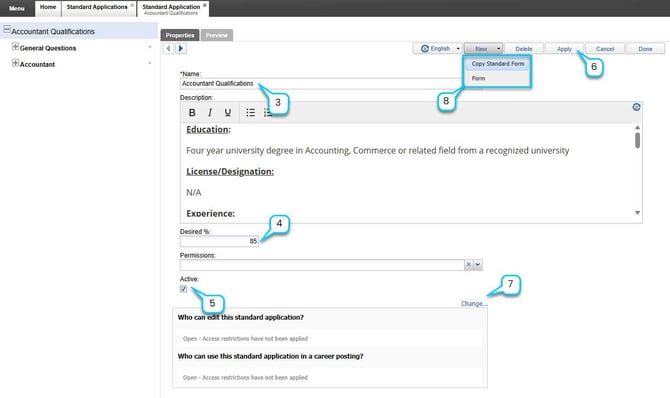
3. Enter the Application Name and optional Description.
4. Set a Desired % if using scoring.
5. Check the Active box to make the form available.
6. Click Apply to save changes and to enable permissions.
7. Set Permissions to control who can view or edit the application. Click Apply to save.
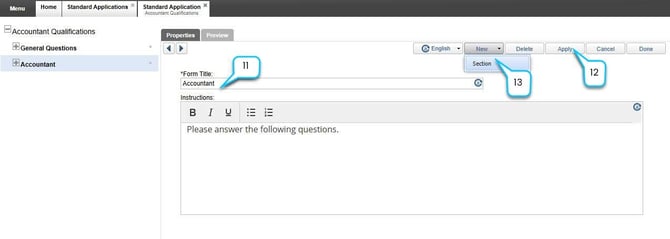
8. Add a form by selecting New > Copy Standard Form (recommended for reusability) or New > Form (to build a new form from scratch).
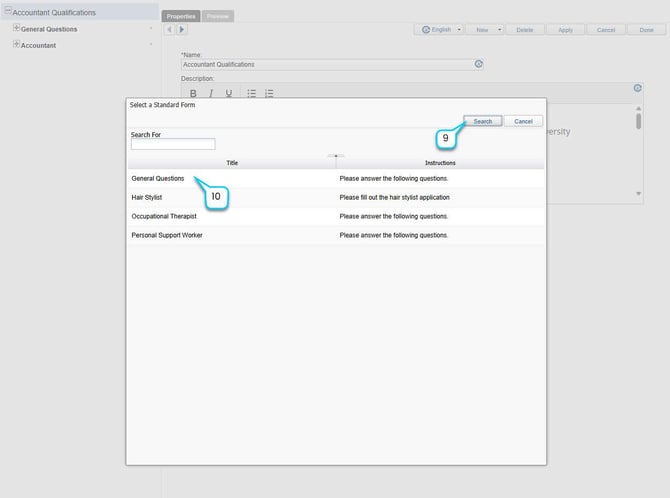
9. If selected New > Copy Standard Form, search for the desired standard forms by typing the name of the form in the Search For section and clicking Search. To search for all available forms, click Search without any search criteria.
10. Select the form you'd like to add to your application. If selected New > Form, start by entering the form Name and Instructions.
11.If selected New > Form, start by entering the form Name and Instructions.
12. Click Apply to save changes.
13. Click New > Section. Repeat steps from the Create a Standard Form section.
Scoring Examples
When it comes to scoring there are two question types that are scored in iTacit; these are Multiple Choice and Multiple Select. A multiple-choice question is scored out of the highest possible score (highest weighted response option), and Multiple Select questions are scored out of the total possible score (all response options added together).
1. An example of a basic question with 2 response options:
- Example Multiple Choice: Response options: Yes = 5; No = 0. The total possible score is 5.
- Example Multiple Select: Response options: Yes = 5; No = 5. The total possible score is 10.
2. An example for a question with 3 response options:
- Example Multiple Choice: Response options: Beginner = 0; Intermediate = 10;
Advanced = 15. The total possible score is 15. - Example Multiple Select: Response options: Beginner = 0; Intermediate = 10;
Advanced = 15. The total possible score is 25.
3. If you have a negative weight, this will lower the score:
- Example Multiple Choice: Response options: Yes = 0; No = -5.
The total possible score is 0. - Example Multiple Select: Response options: Beginner = -10; Intermediate = 10;
Advanced = 15 The total possible score is 15.