
Activity Templates can be used to create a workflow for recruiting activities - from career posting approval processes to candidate onboarding.
1. Log in to the iTacit Admin site.
2. Navigate to Menu > Recruiting & Onboarding > Activities > Career Posting Activity Template.
3. Click the New button to begin.

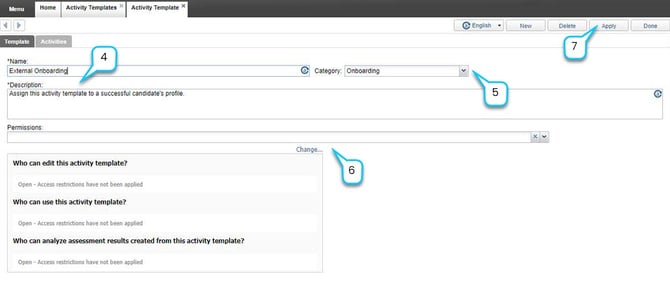
4. Provide a Name and Description.
5. Select the dropdown option by Category to select Task Category.
6. Choose a predetermined permission group by selecting the dropdown option by Permissions OR select Change... to set access permissions without a predetermined permission group (available after saving changes prior to this step).
7. Select Apply to save changes.
Adding Activities to the Template
1. Open the “Activities” Tab.
2. Select New to create a new activity.
3. In the Properties tab, enter the Name of the activity (e.g., Manager Approval, HR Approval).
4. Select the dropdown by Activity Type to set the type activity to General or Approval Required.
5. Select the dropdown by Priority to set the priority level of the activity.
6. When a Dependant On is specified, current activity can't be started until that activity is completed. Set the activity dependency by selecting the dropdown by Dependant On, and select an activity from the list.
7. Select Apply to save changes.

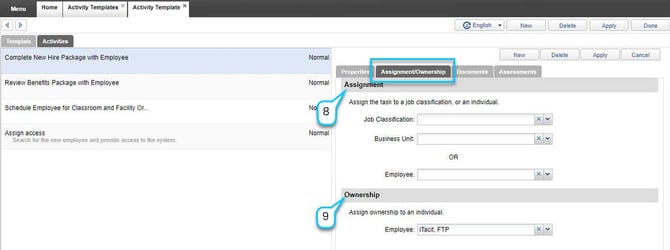
8. In the Assign Ownership tab, under Assignment, assign the task to a Job Classification, Business Unit, or Employee.
9. Assign ownership of the task by selecting the dropdown option by Employee under Ownership.
10. (Optional) In the Documents tab, click New to add a new document.
11. Enter a title for the document in the What is in this document text box.
12. Select Browse to upload the desired document.
13. Select Done to close the pop-up window.

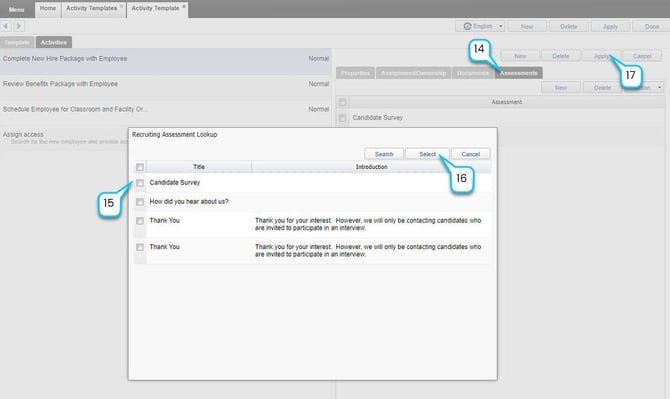
14. (Optional) In the Assessments tab, click New to add a new assessment.
15. Place check marks next to the desired assessment to add.
16. Click Select.
17. Click Apply to save your template.
Once created, activity templates can be applied during the career posting setup process. When selected, the template automatically populates the posting with all predefined activities. Recruiters and hiring managers can then manage these tasks from their respective dashboards, ensuring that each step of the recruitment process is completed efficiently.