This guide introduces the Compliance Dates feature in iTacit - a powerful tool for tracking employee-specific deadlines such as license renewals, background checks, and other time-sensitive requirements. Whether you're an administrator or a manager, this module will help you stay ahead of compliance tasks with automated notifications and centralized visibility.
Content
- What Are Compliance Dates?
- Setting Up Compliance Date Types (Admins Only)
- Managing Permissions and Recipient Groups
- Adding Compliance Dates to Employee Records
- Monitoring Compliance Dates (Managers & Admins)
- Deleting a Compliance Date (Admins Only)
----------------------------------------------------------------------------
What Are Compliance Dates?
Compliance Dates are custom, trackable deadlines tied to individual employee records. Unlike training or form deadlines, these dates are used for external requirements such as:
-
Driver’s License renewals
-
Nursing License expirations
-
Criminal Record Checks
-
Background screening updates
By configuring these dates, organizations can ensure timely renewals and avoid compliance risks.
----------------------------------------------------------------------------
Setting Up Compliance Date Types (Admins Only)
Before tracking dates, you must define the types of compliance dates your organization needs.
1. Log in to the iTacit Admin site.
2. Navigate to Menu > Employees > Configuration > Compliance Date Types
3. Create a New Compliance Date Type. Click New.
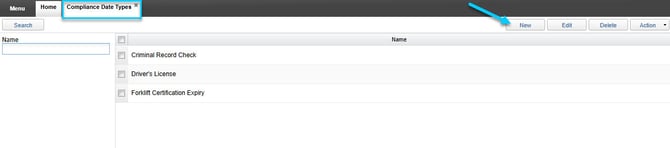
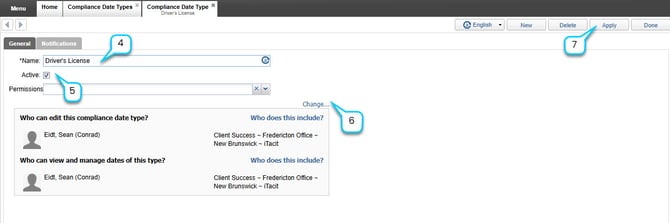
4. Enter the Name (e.g., “Criminal Record Check”)
5. Set as Active.
6. Assign Permissions for who can view/manage this type (available after saving changes by clicking Apply)
7. Click Apply.
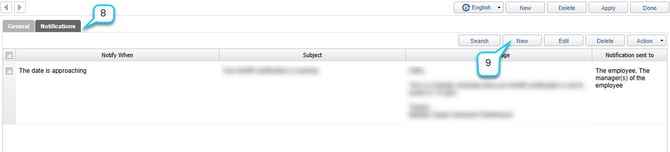
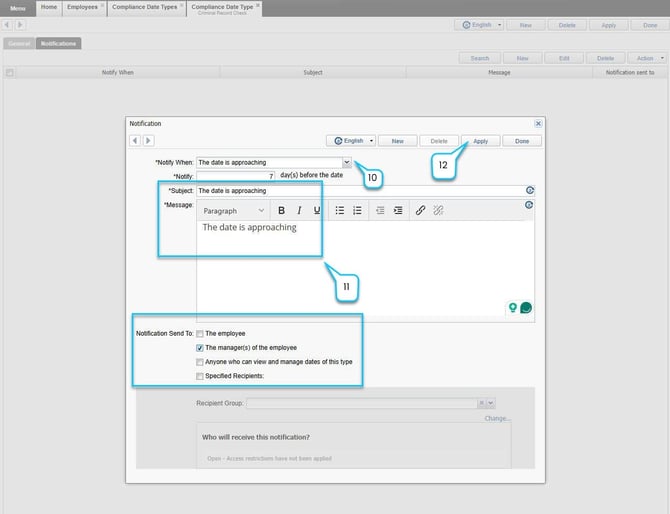
8. Go to the Notifications tab.
9. Click New to add a notification rule.
10. Choose when to notify (e.g., “The date is approaching")
11. Enter Subject, Message, and select recipients (e.g., employee, manager, permission-based, or recipient group).
12. Click Apply, then Done.
----------------------------------------------------------------------------
Managing Permissions and Recipient Groups
To control access and streamline notifications:
-
Set Permissions
-
Go to Compliance Date Type Permissions under Configuration
-
Define who can view, manage, or edit each date type
-
-
Create Recipient Groups
-
Go to Compliance Date Notification Recipient Groups
-
Define groups for targeted notifications
-
----------------------------------------------------------------------------
Adding Compliance Dates to Employee Records
From the Employee Record
1. Log in to the iTacit Admin site.
2. Navigate to Menu > Employees > Employee Manager.
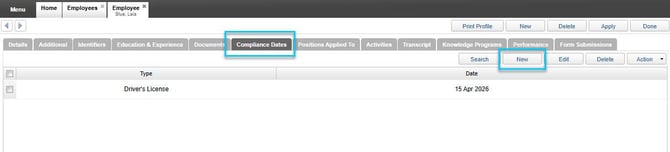
3. Navigate to the Compliance Dates tab.
4. Click New to create a new compliance date.
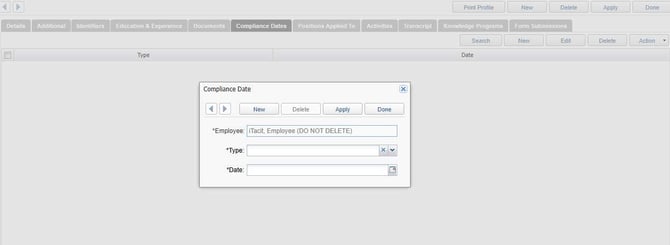
5. Select a Type (e.g., “Driver’s License”).
6. Enter the expiry Date.
7. Click Apply, then Done.
Note: Each employee can only have one date per type. If a duplicate is attempted, an error will appear.
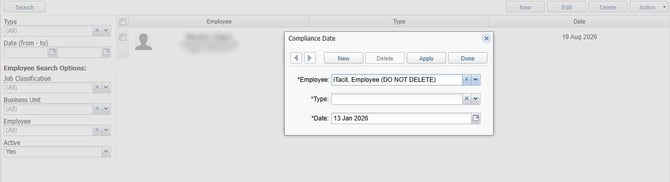
From the Compliance Dates List Screen
1. Log in to the iTacit Admin site.
2. Navigate to Menu > Employees > Compliance Dates.
3. Click New to add a Compliance Date.
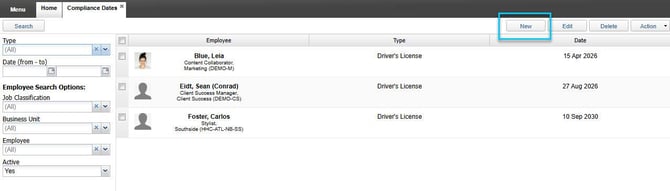
4. The same pop-up form used in Employee Manager will appear. Select an Employee, Compliance Type, and a Date.
5. Click Apply, then Done.
----------------------------------------------------------------------------
Monitoring Compliance Dates (Managers & Admins)
When we show up to the present moment with all of our senses, we invite the world to fill us with joy. The pains of the past are behind us. The future has yet to unfold. But the now is full of beauty simply waiting for our attention.
1. Log in to the iTacit Admin site.
2. Navigate to Menu > Employees > Compliance Dates.
3. Filter by:
-
Type
-
Date Range
-
Employee
-
Job Classification
-
Business Unit
4. Use the Active dropdown to include/exclude inactive employees.
5. Click Search.
6. Click on any record to view and edit Compliance Date.
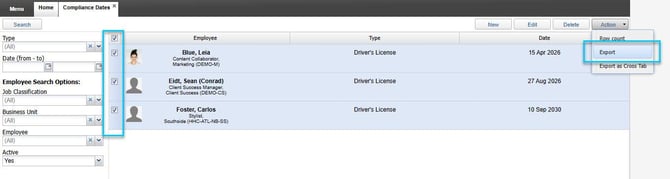
7. Select one or multiple records. Use the Action menu to:
-
Export standard data
-
Export as Crosstab by date type
----------------------------------------------------------------------------
Deleting a Compliance Date (Admins Only)
Administrators and managers with appropriate permissions can delete a compliance date from an employee’s record when it is no longer needed or was entered incorrectly.
1. Log in to the iTacit Admin site.
2. Navigate to Menu > Employees > Compliance Dates.
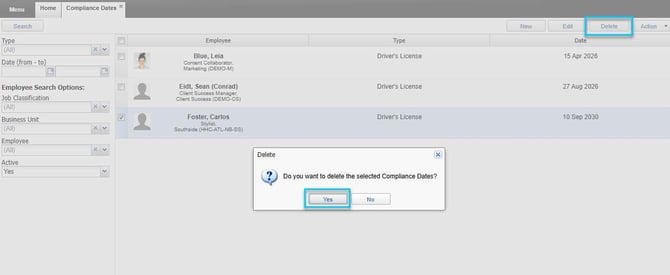
3. Search for the Compliance Date. Use the filters on the left side of the screen to narrow down your search.
4. Once the list is filtered, check the box next to the employee whose compliance date you want to delete.
5. At the top-right corner of the screen, click the Delete button.
6. A confirmation dialog will appear asking: “Do you want to delete the selected Compliance Dates?” Click Yes to confirm and proceed.