Display Values help you turn raw scores into meaningful labels - like “Pass,” “Needs Improvement,” or “Exceeds Expectations.” These labels make it easier to interpret results, trigger notifications, and spot trends in reporting.
You’ll use Display Values in forms that include scoring, such as performance reviews, safety checklists, or assessments. They’re especially helpful when you want to automate follow-ups or flag submissions that fall below a certain threshold.
Where Are Display Values Used?
In Notifications
-
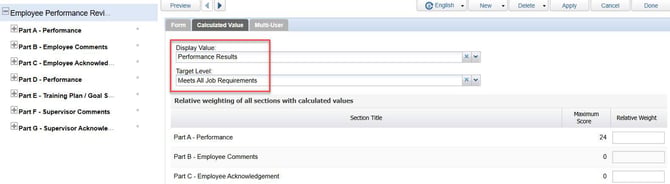
Display Values can be used to trigger automated notifications. For example, if a form result falls below the defined Target Level, a notification can be sent to a manager or HR representative.
-
This ensures that underperformance or compliance issues are flagged immediately and routed to the appropriate person for follow-up.
-
Use Case: A safety checklist form with a “Fail” result can automatically notify the Safety Officer for immediate action.
In Analytics
-
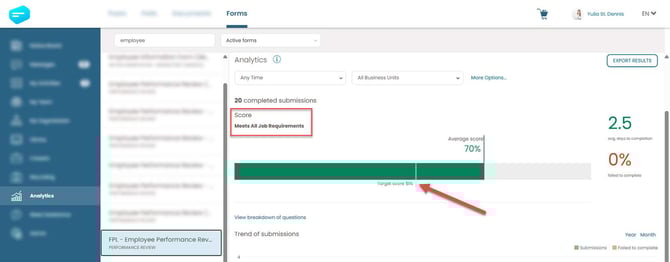
Display Values appear in the Form Analytics dashboard, allowing you to filter and report on performance trends across teams, departments, or time periods.
-
In the example shown, the dashboard summarizes:
-
Average score - 70% (based on 20 submissions)
-
Target score - 51% (desired result)
-
-
Display Values like “Meets All Job Requirements” help translate raw scores into actionable insights.
Example: In a performance review form, a section might be scored out of 100. If the employee scores 85, and the Display Value for 80–100 is “Meets All Job Requirements,” that label will be shown in the form summary and analytics.
How to Create Display Values
To create or manage Display Values, you must first log in to the iTacit Admin Tools app. This is where all configuration and form-building tools are located.
- Open the Admin site from your iTacit navigation menu
- Navigate to Menu > Library > Configuration > Display Values
General Tab
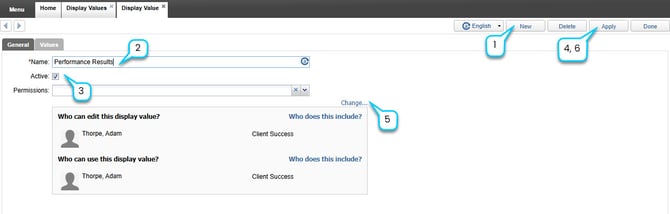
- In the Display Values screen select New.
- Enter a Name (e.g., “Assessment Results”)
- Check the Active box to make the display value available for use
- Click Apply to save changes.
- Choose a predetermined permission group by selecting the dropdown option by Permissions OR select Change... to set access permissions without a predetermined permission group.
- Click Apply one more time
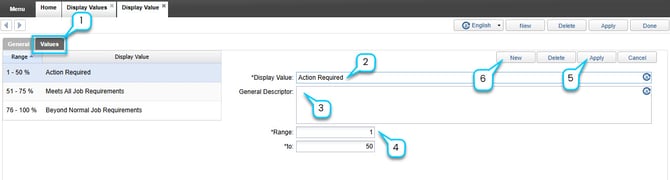
ValuesTab
- Click on the Values tab.
- Add each Value (e.g., “Pass,” “Fail”)
- Optional: Provide a general description of the value
- Provide a range of percentile of the value (e.g. 1-50)
- Select Apply to save changes
- Click New to add next value