
When a form is submitted, overdue, or doesn’t meet a target score, someone needs to know. That’s where Notification Recipient Groups come in. These pre-defined groups make it easy to send alerts to the right people - without having to manually select recipients every time.
Instead of choosing individuals one by one, you create a group once and reuse it across multiple forms. It’s efficient, scalable, and easy to maintain.
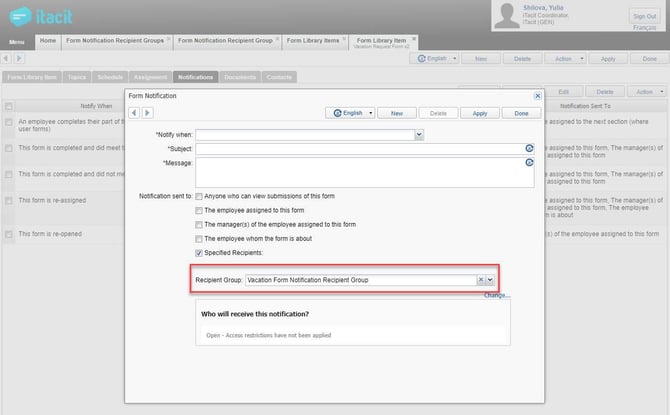
To create or manage Notification Groups, first log in to the Admin Tools app and navigate to Menu > Library > Configuration > Notification Recipient Groups.
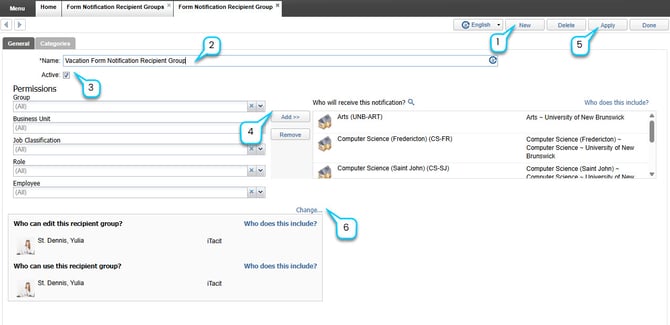
1. Select New to create a new notification recipient group.
2. Enter a descriptive name for the group in the Name field.
3. Check the Active box to make the group available for use in form notifications.
4. Define who can access this group by setting one or more of the following:
-
Group: Select a predefined group of users
-
Business Unit: Limit access to a specific business unit
-
Job Classification: Target users by job classification
-
Role: Assign access based on user roles
-
Employee: Select individual employees
Use the Add >> button to move selected users or roles into the recipient list.
5. Select Apply to save changes.
6. Select Change... to specify which users or roles are allowed to modify this group or to select this group when configuring form notifications.
Tip: Use descriptive names for your groups (e.g., “Safety Alerts,” “Payroll Reviewers”) so they’re easy to identify when configuring notifications.