
Standard Responses are your go-to tool for creating consistent answer options across multiple forms. Whether it’s a dropdown, multiple choice, or multi-select question, these reusable sets help you save time and keep your data clean. Instead of typing out the same list of answers over and over, you can build a response set once and apply it wherever needed.
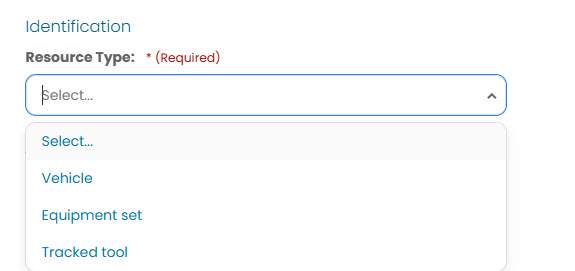
Where Are Standard Responses Used?
You will use Standard Responses when creating questions in the Form Builder that require a selectable list of answers. Specifically, they are used when the answer style of a question is set to:
-
Dropdown – A single-select list of options
-
Multiple Choice – A list of radio buttons where only one option can be selected
-
Multiple Select – A list of checkboxes where multiple options can be selected
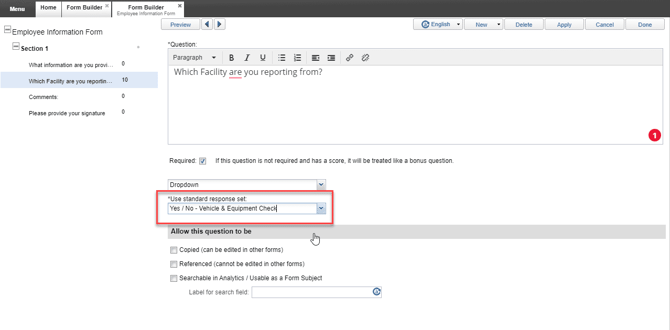
When you choose one of these answer styles, the Form Builder will prompt you to select a Standard Response set. This allows you to quickly apply a consistent list of options without having to manually re-enter them each time.
To create or manage Standard Responses, you must first log in to the iTacit Admin Tools app. This is where all configuration and form-building tools are located.
-
Open the Admin site from your iTacit navigation menu
-
Go to Menu > Library > Configuration > Standard Responses
General Tab
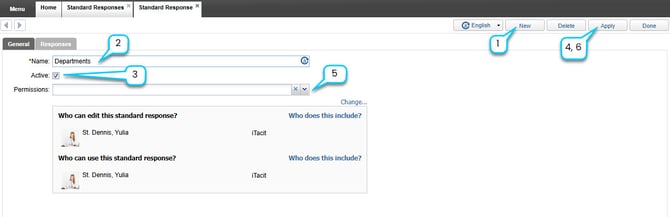
- In the Standard Responses screen, select New.
- Enter a Name (e.g., “Performance Rating”)
- Check the Active box to make the standard response available for use
- Select Apply
- Choose a predetermined permission group by selecting the dropdown option by Permissions OR select Change... to set access permissions without a predetermined permission group.
- Select Apply again to save changes.
Responses Tab
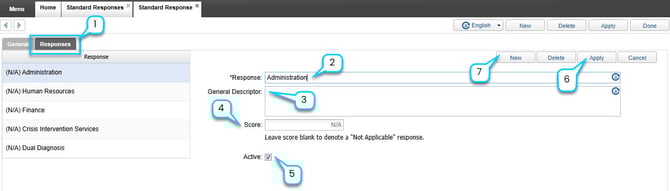
- Go to the Responses tab to add responses.
- Add each response (e.g., “Exceeds Expectations,” “Meets Expectations,” etc.)
- Optional: add a Descriptor
- Optional: add a Score
- Check the Active box to make the standard response available for use
- Click Apply to save
- Click New to add your next response option
Example: If you have a “Satisfaction Rating” question used in multiple forms (e.g., surveys, evaluations, exit interviews), you can create a Standard Response set with values like “Very Satisfied,” “Satisfied,” “Neutral,” “Dissatisfied,” and “Very Dissatisfied.” This ensures consistent data collection and easier reporting.