
Sometimes a form submission doesn’t go as planned - it gets canceled, rejected, or marked incomplete. That’s where Submission Status Reasons come in. These custom labels help explain why a form’s status changed, making your reporting clearer and your audit trails more reliable.
Instead of leaving a status change vague, you can add context like “Employee left the organization” or “Form no longer required.” This helps teams understand what happened and what action (if any) is needed.
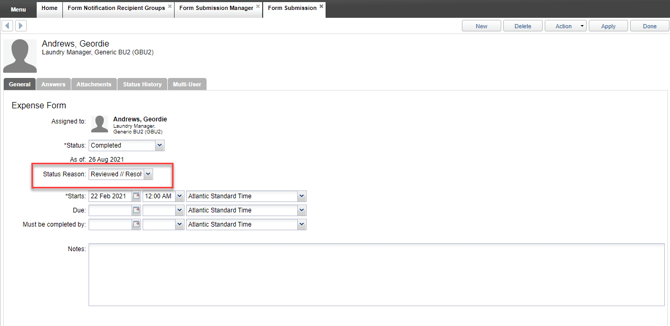
To create or manage Form Submission Status Reasons, first log in to the Admin Tools app and navigate to Menu > Library > Configuration > Form Submission Status Reasons
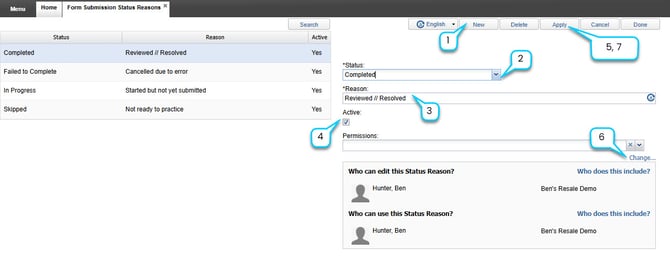
- Select New to create a new reason.
- Select a Status from a drop-down (e.g., “Cancelled”)
- Enter a Reason (e.g., “Employee no longer with company”)
- Check the Active box to make the status reason for use
- Select Apply to save changes.
- Choose a predetermined permission group by selecting the dropdown option by Permissions OR select Change... to set access permissions without a predetermined permission group.
- Select Apply to save changes.
Tip: Use clear, actionable language so that reports are easy to interpret later.