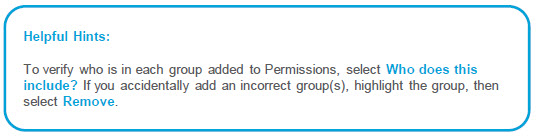
Documents:
Use the Documents Library to provide relevant, targeted documents (policies and procedures, manuals, presentations, etc.) to employees.
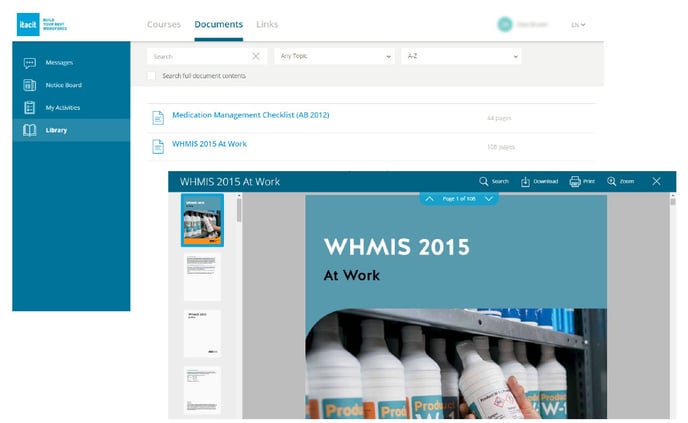
Create, edit, or delete a Document in the Library menu in your administrative tools.
To get started, select Menu > Library > Library Documents.
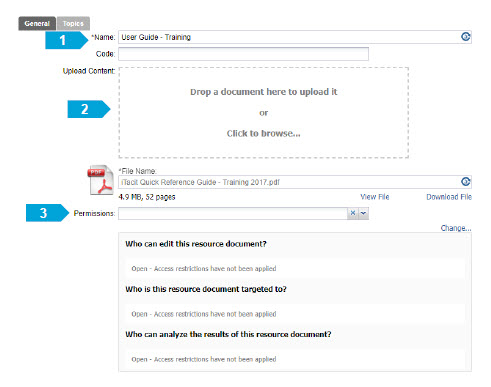
In the Library Documents screen, select New:
- Enter the Document Name.
- Upload your content via drag and drop, or choose Click to Browse.
- Set your Document Permissions.
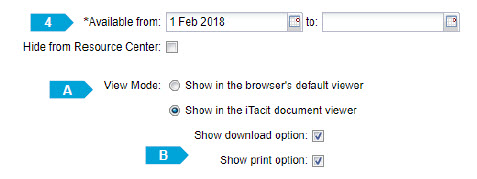
- Enter the date(s) you would like your Document to be available, and select Apply to save.
Additional features:
- View Mode: iTacit’s document viewer is the default display for Documents, which allows readers to search for specific text within the document, zoom in or out, print, and/or download. When uploading fillable PDFs, you may wish to select the web browser’s default viewer. Both the form itself and the entered data can be printed.
- Show download option / Show print option: iTacit's document viewer is defaulted to enable Document download and/or printing. These settings can be turned off as the sensitivity of the Document requires.