
Exporting form submissions allows administrators to generate reports for analysis, auditing, or record-keeping. This is especially useful for monthly reporting, compliance tracking, or sharing data with other departments.
-
Log on to iTacit Admin Tools as an Administrator.
-
Navigate to Menu > Library > Form Submission Manager.
-
Use the Search Filters. Filter by:
-
Form name (e.g., “Incident Report”)
-
Date range (e.g., submissions from the past month)
-
Status (e.g., Completed)
-
Assignee or Subject
-
- Click Search.
-
Use the checkboxes to select one, several, or all matching submissions.
-
Click the Action > Export

-
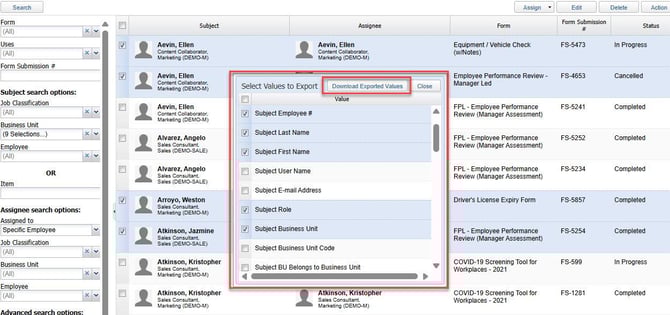
(For the Export option) Select values that you want to include in your export
-
Click Download Exported Values
-
A spreadsheet will be downloaded to your device containing all selected values
---------------------------------------------------------------------
Export Options
Exporting form submissions is a key feature in iTacit’s Form Submission Manager, allowing administrators to extract data for reporting, analysis, or archiving. Depending on your needs, you can choose from three export formats - each serving a different purpose.
1. Export
This option allows you to customize the export by selecting specific fields from a list. You choose what data you want to include - such as assignee name, form status, due date, or completion date.
Output Format:
-
-
A spreadsheet (.xlsx or .csv)
-
Contains only the fields you selected
-
2. Export with Answers
This option exports a spreadsheet that includes predetermined fields about the assignee and their answers to the form questions.
Output Format:
-
-
A spreadsheet (.xlsx)
-
Contains assignee details and all submitted answers
-
3. Export as PDF
This option downloads the entire form in PDF format, including:
-
-
Questions
-
Answers
-
Dates
-
Signatures (if applicable)
-
Output Format:
-
-
A printable PDF file
-
Mirrors the form layout as seen by the user
-