
Example: HR administrator will set up Forms and Checklist data in iTacit Admin. Employees will submit answers to these Forms and Checklists using iTacit.
If your form supporting data has already been created, click here to skip down to how to create a form.
If you've already created your Form in the Form Builder, click here to jump to getting your form onto your site.
If you need to assign forms to employees, click here.
How to setup Forms and Checklists in the Admin Tools
WHO WILL DO THIS?
A back-end user with access to the Admin Tools app, e.g. someone in a HR role. This type of user will set up the supporting data for Display Values, Standard Responses, Forms, and Permissions
ITACIT ADMIN TOOLS MENU
Once Menu access has been granted to those who need it, users can log on to iTacit Admin Tools app and start adding supporting data for Forms and Checklists.
Navigate to Library>Configuration to add all supporting data (broken down below).

LIBRARY TOPICS
Create topics to add to Forms and Checklists so users can easily search forms by topic.

STANDARD RESPONSES
Create common Standard Responses such as Yes/No to be used in building forms and checklists.

DISPLAY VALUES
Create common Display Values such as Pass/Fail to be used in building forms and checklists and the score range that will display the values (if applicable).

NOTIFICATION RECIPIENT GROUPS
Create pre-defined recipient groups for notifications to be used in building forms and checklists to ensure standard management of communications.

FORM SUBMISSION STATUS REASONS
Create form submission status reasons to be used in building forms and checklists to view status of forms submissions.

LIBRARY FORM PERMISSIONS
Users can define permission groups for all forms and checklist supporting data.

Now that all the supporting data to build a Form or Checklist is setup, users can now create forms and checklists.
Forms Builder (Admin Tools)
So all your back-end Form and Checklist data has been set up, now you are ready to build a form or checklists for the front-end iTacit 2.0 users to fill out.
Let’s start with a typical scenario!
Scenario: An employee needs to update their payroll information. They need to fill out a form that then goes to HR.
- Log on to iTacit Admin Tools as an Administrator
- Go to Library > Form Builder
- Click the New button to create a new form or checklist
- The Form Builder has 3 tabs: Form, Calculated Value and Multi-User

FORM TAB:
The Form Builder is a series of screens united by a tree view on the left hand side showing the structure of the form.
- Enter the title, select the type (Form or Checklist) and select the appropriate settings applicable to your form.

- Add Sections to the form by selecting the ‘New’ button and one of the ‘Sections’ options.

- Add Questions to the Section by selecting the ‘New’ button and one of the ‘Questions’ options.

- Create a question by using one of the following types: single line text, paragraph, multiple choice, multiple select, numeric, date, date and time, dropdown, or signature.

Now you've successfully created a Section and a Question, let's take a look at how to display information based on a score!
CALCULATED VALUE TAB
The ‘Calculated Value’ tab displays pre-defined Display Values that can be added to the highest level of the Form, or individual Sections of the Form.
Scenario: Using the Forms tool, a hospital is able to screen their employees for illness (i.e. Covid-19) before they start their shift. If they receive a score of 0% they will pass the screening and see that they are able to safely attend their shift.

MULTI-USER FORMS
The ‘Multi-User’ tab at the highest level of the Form, provides the ability to specify if multiple users will be involved when the form is being completed.
- Click on the "Multiple users are required to complete this form" to enable the multi-user feature on the form.

- Click on the "Manage Secondary Assignees" button to define the Secondary Users who will be involved in the completion of the form.

The pop-up Secondary User screen will define how the secondary user will:
- Be assigned the form (The role to which the primary user reports, A specific role or a specific employee)
- Access the form (Cannot view or edit previous sections, Can view, but not edit, previous sections or Can view and edit previous sections)
- Reassign (checkbox to Allow the user to re-assign the form back to the previous user for editing)
NOTE: Signature fields cannot be edited by a secondary user, even if the setting to edit has been selected
ASSIGN SECONDARY USERS TO EACH SECTION
For each ‘Section’ in the form, click on the ‘Multi-User’ tab to assign the appropriate user to that section.
NOTE: The first section must ALWAYS be assigned to the Primary Assignee (or the employee the form is assigned to)

PUBLISHING YOUR FORM
Once you are ready to use your Form, it's time to Publish it! To do this, click on the Form title on the left-hand side and under the "Versions" header, click "Publish this version".
Now that the Form has been built and published, it can be used to create the Form that will be displayed in the Library to employees. Let's take a look at how to give your employees access to your forms.
Form Library Items (Admin Tools)
Log on to iTacit Admin Tools as an Administrator
Navigate to Library>Form Library Items
When you first open Form Library Items, the option to search for Form Library Items will appear. If you haven't created one yet, click the "New" button on to top right to being.

When creating a Form Library Item, you will give it a name and select the Form you want it to use under "Uses Form".
Tip: Don't see your form? Go back to the Form in Form Builder and ensure you have published it.
On the right you can define who the Form is about, where the form appears, whether you'll allow attachments or notes, and if the employee can re-open the form once completed.
You'll also be able to make some decisions about scoring and multi-user assignment (if applicable), and upload an image to the Form.
The image will appear in your Itacit instance under Library > Forms when in the grid view.

Once you've saved your form you will notice you have some tabs at the top to explore. Let's take a look at them below.
DESCRIPTION TAB
The Description tab allows you to write a blurb about the Form in question. This could be whatever you need it to be, including instructions on when to fill out the form, or an explanation of a policy they're signing off on.
In your Itacit instance this will appear under a header called "About this Form".

TOPICS TAB
The Topics tab allows a form to be categorized by topic. Topics can be created in Library>Configuration>Library Topics. Your Form can have multiple topics, so don't worry if you think it fits under more than one category.

SCHEDULE TAB
The Scheduled tab allows for due date and recurrence rules to be defined.

ASSIGNMENT TAB
This tab allows for you to automatically assign your Form to employees, rather than manually assigning each Form.

NOTIFICATIONS TAB
The Notifications tab allows for Notifications to be configured to inform various users when various scenarios happen regarding the Form.

The following pre-defined notification options can be selected from the dropdown "Notify when" list:
- Form is assigned and ready to start
- Form is claimed by an employee (pooled assignment)
- Form is started
- Form is approaching its due date
- Form becomes past due
- An employee completes their part of the form (multi-user forms)
- Form is reassigned
- Form is completed
- Form is completed and did not meet the target level
- Form is completed and did meet the target level
- Form is re-opened
- Form is not completed by the specified date
- Form is cancelled
- Form is sent back to a previous assignee (multi-user forms)
- The active secondary section of the Form is re-assigned
- Notes on the Form have been added, modified, or removed
Once you've determined the trigger and the content of the notification, you can then decide who to send this notification to. This is a multi-select option!

DOCUMENTS TAB
Files can be uploaded to a Form and will display on your Form before the employee(s) begin the submission.

CONTACTS TAB
Contacts can be added to a Form for end-users to reach out to regarding the Form.

Now the Form is created, we have defined its topic, schedule, notification, documents and contacts, the Form is ready to go.
If you didn't choose to automatically assign this form to employees, the next section will show you how to manually assign Forms.
Form Submission Manager
To access the Form Submission Manager, go to Library>Form Submission Manager. From there, you will see the tab below where you can search for Form Submissions.

On the right hand side, under "Assign" you can search select how you'd like to assign the Form.

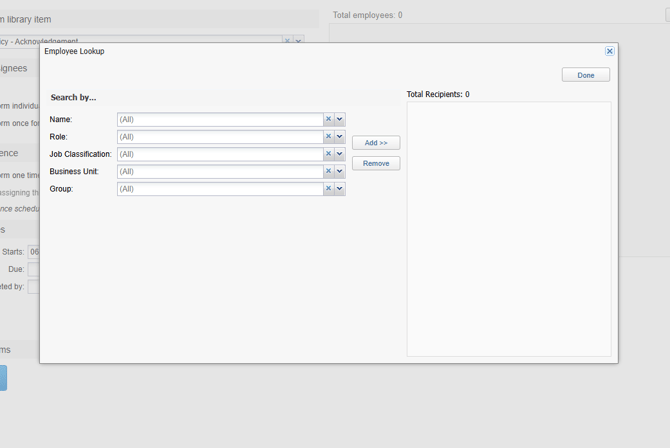
From there, you can determine what employees you want to assign the Form to and the recurrence (if applicable). Below is a screenshot to show you how you can search for employees.
Once you've assigned the Form, employees can begin to complete them. Those Forms will display in iTacit under "My Activities" and the Form Library.