
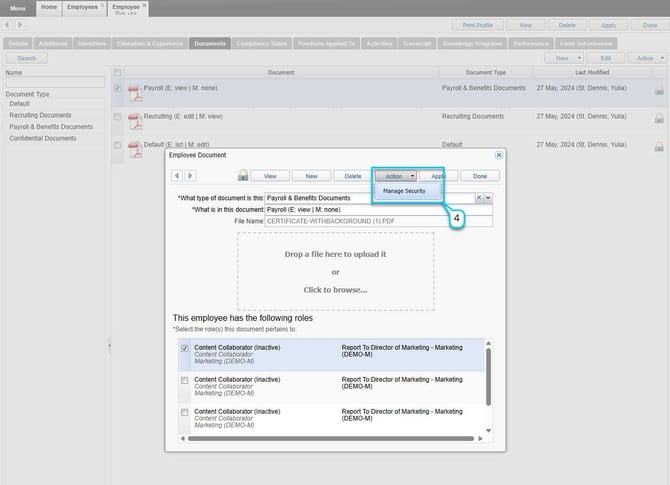
- Navigate to Employee Manager > Employee Profile > Documents tab (for admins)
- Locate and click on the document you want to view.
- Click Action > Manage Security and then update permissions in the pop-up window.
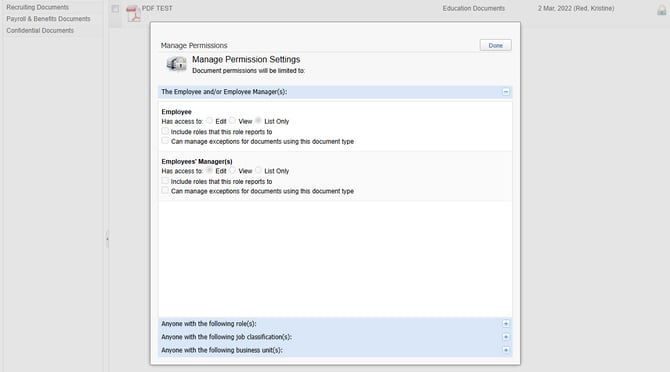
Permission Settings Explained
Employee
- Has access to:
- Edit: The employee can edit documents of this type.
- View: The employee can view documents of this type.
- List Only: The employee can only see the document listed but cannot open or edit it.
- Include roles that this role reports to: When checked, access permissions extend to roles higher in the reporting hierarchy.
- Can manage exceptions for documents using this document type: Allows the employee to override standard permissions for specific documents of this type.
Employees’ Manager(s)
- Has access to:
- Edit: The manager can edit documents of this type.
- View: The manager can view documents of this type.
- List Only: The manager can only see the document listed but cannot open or edit it.
- Include roles that this role reports to: When checked, permissions extend to higher-level managers in the reporting hierarchy.
- Can manage exceptions for documents using this document type: Allows the manager to override standard permissions for specific documents of this type.
Additional Access Options
You can also grant access based on organizational attributes:
-
Anyone with the following role(s): Grants access to users assigned to specific roles (e.g., Payroll Specialist, HR).
-
Anyone with the following job classification(s): Grants access to users based on job classification codes (e.g., Contractor).
-
Anyone with the following business unit(s): Grants access to users within specified business units or departments (e.g., HR)