
Once your form is built and ready, it’s time to publish it. Publishing locks the form so it can’t be edited further, making it stable and ready to be linked to a Form Library Item for assignment or display. Think of publishing as the final quality check before your form goes live.
1. Access the Form Builder
-
Go to Menu > Library > Form Builder.
-
Select the form you wish to publish.
-
In the Versions area, click Publish this version.
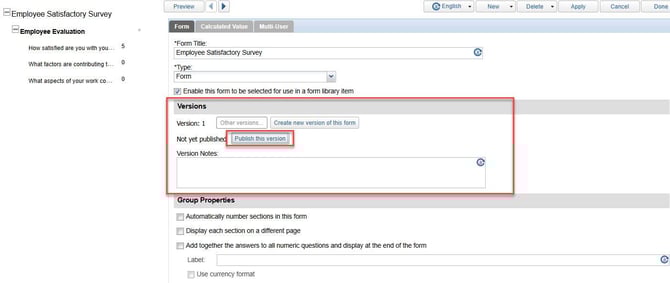
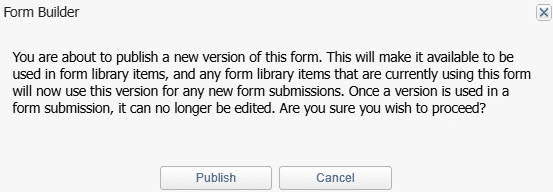
If the form has never been used before, a prompt will appear asking to confirm publication. Click Publish to publish the form.
What Happens After Publishing?
Once the form is published:
-
It becomes available for selection in the Form Library Item setup.
-
You can no longer edit the form directly. To make changes, you must create a new version.
-
The form is considered “ready for use” from a configuration standpoint.
When Should You Publish a Form?
You should publish a form when:
-
All sections and questions are complete.
-
Conditional logic and calculated values have been tested.
-
Multi-user assignments (if applicable) are correctly configured.
-
The form has been reviewed and approved internally.