
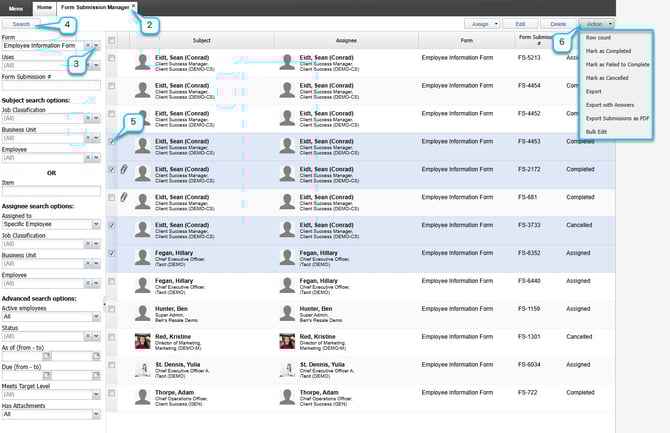
Once forms are assigned and completed, administrators can manage submissions using the Form Submission Manager. This tool allows you to search, filter, export, and update form statuses across your organization.
-
Log on to iTacit Admin Tools as an Administrator.
-
Navigate to Library > Form Submission Manager.
-
Use the Search Filters
-
Filter by:
-
Form name (e.g., “Incident Report”)
-
Date range (e.g., submissions from the past month)
-
Status (e.g., Completed)
-
Assignee or Subject
-
-
-
Click Search
-
Use the checkboxes to select one, several, or all matching submissions.
-
The Action button will provide additional options to change the status of the form(s), to export form submissions into a workbook, or to bulk edit start, end, and due dates for select submissions.
Understanding the Form Submission Tabs
When you open a specific form submission from the Form Submission Manager, you’ll see several tabs that provide insight into the form’s lifecycle, content, and workflow. Each tab serves a unique purpose in helping administrators and managers review, troubleshoot, or take action on a submission.
1. General Tab
The General tab provides a high-level overview of the form submission. It includes key metadata and allows you to make administrative changes.
What You’ll See:
-
Form Submission Number: A unique identifier for tracking
-
Assignee: The employee assigned to complete the form
-
Status: Current state of the form (e.g., Assigned, In Progress, Completed)
-
Due Date: The deadline for completion
-
Additional Notes: Any notes added by administrators or users
What You Can Do:
-
Change the status of the form (e.g., cancel, complete, reopen)
-
Add or edit notes for internal tracking
-
Export the form in the PDF format via Action > Export as PDF
Example: An HR coordinator notices a form is still marked “Assigned” past its due date. After reviewing the notes, they update the status to “Canceled” and add a note explaining that the employee left the organization.
.jpg?width=670&height=338&name=General%20Tab%20(forms).jpg)
2. Answers Tab
The Answers tab displays the responses submitted by the employee. It’s useful for reviewing content without downloading or exporting the form.
What You’ll See:
-
All completed questions and answers
-
Section-by-section breakdown (if applicable)
Example: A manager is reviewing a “Training Feedback” form that an employee says they can’t submit. In the Answers tab, the manager sees that a required question was skipped, preventing submission.
.jpg?width=670&height=364&name=Answers%20tab%20(forms).jpg)
3. Attachments Tab
The Attachments tab shows any files uploaded by the employee during form completion.
What You’ll See:
-
Uploaded documents (e.g., PDFs, images, certificates)
-
File names and upload timestamps
Example: An employee submits a “License Renewal” form and uploads a scanned copy of their new license. The HR team reviews the file in the Attachments tab before updating their record.
.jpg?width=670&height=189&name=Attachments%20tab%20(forms).jpg)
4. Notes Tab
The Notes tab captures any comments added by the employee or secondary users during the form’s lifecycle.
Example: A secondary user adds a note explaining why a section was reassigned back to the primary assignee for edits.
.jpg?width=670&height=211&name=Notes%20tab%20(forms).jpg)
5. Status History Tab
The Status History tab provides a timeline of the form’s progress, including who assigned it, when it was started, and when it was completed.
Example: A compliance officer reviews the Status History to confirm that a “Safety Incident Report” was submitted within 24 hours of the event, as required by policy.
.jpg?width=670&height=198&name=Status%20history%20tab%20(forms).jpg)
6. Multi-User Tab
For multi-user forms, this tab shows the workflow structure and who is responsible for each section.
What You’ll See:
-
Section-by-section assignments
-
Current assignee for each section
-
Progress indicators
What You Can Do:
-
Reassign sections to different users
-
Monitor workflow progress
Example: A manager assigned to complete a section of a “Performance Evaluation” form is on extended leave. From the Multi-User tab, HR reassigns that section to the acting team lead to keep the process moving.
.jpg?width=670&height=197&name=Multi-user%20tab%20(forms).jpg)