If you have access to the Admin site, you can configure Document Permissions to control who can view, edit, or list documents across your organization. This ensures sensitive files are only accessible to the right people, supporting compliance and role-based visibility.
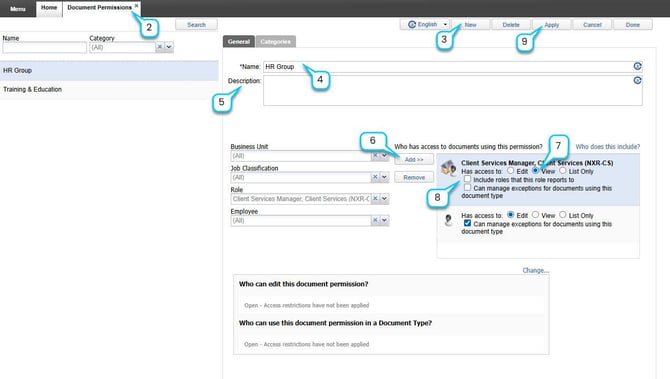
1. Log in to the iTacit Admin Site.
2. Navigate to Menu > Employees > Document Permissions.
3. Click “New” to Create a New Permission Rule.
4. Name: Enter a name for the permission rule (e.g., “HR Group Access”).
5. (Optional) Description: Add a short description to clarify the purpose of this rule.
6. Target Groups
-
Business Unit: Select a specific business unit.
-
Job Classification: Choose a classification.
-
Role: Click Add to select one or more roles (e.g., “Client Services Manager”).
-
Employee: Choose specific employees.
7. Under Who has access to documents using this permission?, choose one of the following:
-
Edit: Full access to view and delete documents.
-
View: Can open and read documents but cannot delete.
-
List Only: Can see that a document exists but cannot open or delete it.
8. Advanced Options
-
Include roles that this role reports to - Check this box if you want reporting roles to inherit access.
-
Can manage exceptions for documents using this document type – Enable this if users should be able to override default permissions.
9. Click Apply to save and continue editing. Or click Done to finalize and exit.