Form notifications ensure that the right people are informed at the right time throughout the lifecycle of a form. Whether it's notifying a manager when a form is completed or alerting a user that a form is past due, these automated messages help maintain accountability and workflow efficiency.
1. Go to Menu > Library > Form Library Items
2. Select the Library Item you want to configure
3. Click on the Notifications tab
4. Click New to create a new notification
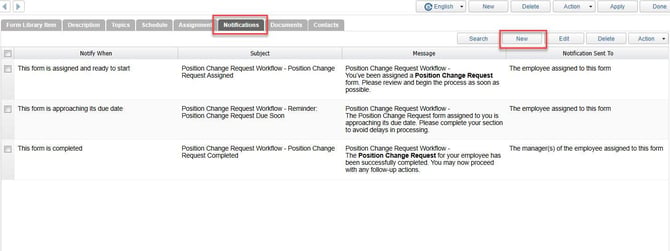
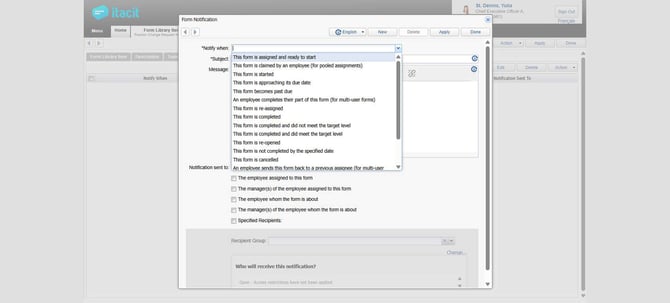
5. Choose Notification Triggers from the drop-down
6. Enter the Subject and Message text of the notification
7. Select Notification Recipients. Notifications can be sent to:
-
Anyone who can view submissions of this form (from the permissions)
-
The employee assigned to this form
-
The manager(s) of the employee assigned to this form
-
The employee whom the form is about
-
The manager(s) of the employee whom the form is about
-
The employee assigned to this section (for multi-user forms)
-
The employee assigned to the next section (for multi-user forms)
-
Specified Recipients (available for modification after clicking Apply)
8. Click Apply to save your notification.
---------------------------------------------------------------------
Notification Trigger Options
Notification trigger options define when a notification should be sent. These
are event-based conditions such as “when a form is submitted,” “when a
status changes,” or “when an assignment is completed.” Essentially, triggers
answer the question: What action or event causes the system to send a
notification?
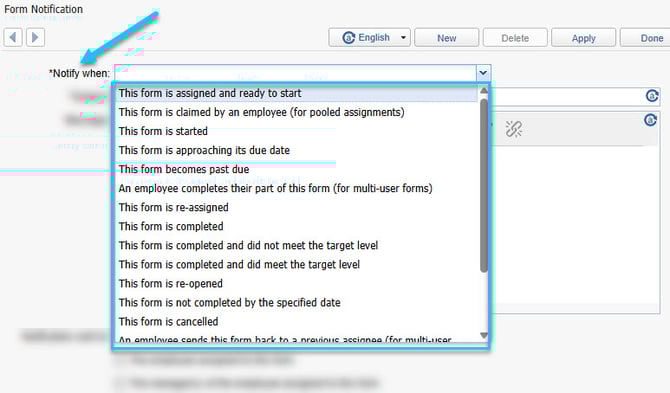
1. This form is assigned and ready to start: Sent when the form is first assigned to a user, signaling they can begin.
Example: If a performance review form is assigned to John, he receives a notification saying, “Your performance review form is ready to start.”
2. This form is claimed by an employee (for pooled assignments): Triggered when an employee claims a form from a shared pool. A shared pool is a group of users who share the same role or responsibility - any member of the pool can claim the form and take ownership of completing it.
Example: A “Daily Safety Checklist” form is assigned to the Maintenance Team. When John from the Maintenance Team claims it, the recipient receives a notification confirming the claim.
3. This form is started: Sent when the user begins filling out the form.
Example: John starts his compliance training form. HR receives a notification that the form is in progress.
4. This form is approaching its due date: Reminder notification sent as the due date nears.
Example: Two days before the due date, John gets a reminder: “Your safety audit form is due soon.”
5. This form becomes past due: Alert sent when the form is overdue.
Example: John’s manager receives: “The compliance form assigned to John is now past due.”
6. An employee completes their part of this form (for multi-user forms): Notifies stakeholders that a section assigned to an employee is complete.
Example: Maria completes Section 1 of a multi-user onboarding form. David (assigned to Section 2) gets notified: “Your section is ready.”
7. This form is re-assigned: Sent when the form is reassigned to a different user.
Example: If John cannot complete the form and it’s reassigned to Emily, Emily receives: “A form has been reassigned to you.”
8. This form is completed: Triggered when the entire form is finished.
Example: HR receives: “The employee satisfaction survey for John is completed.”
9. This form is completed and did not meet the target level: Sent when completion occurs but performance or scoring falls below target.
Example: If a performance review score is below expectations, the manager gets: “John’s review did not meet the target level.”
10. This form is completed and did meet the target level: Sent when completion meets or exceeds the target level.
Example: Manager receives: “Emily’s training assessment met the target level.”
11. This form is re-opened: Notifies that a previously completed form has been reopened for edits.
Example: John re-opens a completed form. HR gets: “The compliance form for John has been reopened for updates.”
12. This form is not completed by the specified date: Alert for missed deadlines.
Example: Manager receives: “The onboarding form for Emily was not completed by the specified date.”
13. This form is cancelled: Sent when the form is cancelled and no further action is needed.
Example: Employee receives: “Your assigned form has been cancelled.”
14. An employee sends this form back to a previous assignee (for multi-user forms): Triggered when a section is returned to a prior user for review or correction.
Example: David sends Section 2 back to Maria for corrections. Maria gets: “A form section has been returned to you.”
15. The active secondary section of this form is re-assigned (for multi-user forms): Notifies that a secondary section has been reassigned.
Example: If Section 3 is reassigned from Alex to Sarah, Sarah receives: “You have been assigned a section of the onboarding form.”
16. Notes on the form have been added, modified, or removed: Sent when comments or notes are updated on the form.
Example: HR adds a note to the form; assignee and manager are notified
---------------------------------------------------------------------
Notification Recipient Options
Notification recipient options determine who will receive that notification once it’s triggered. Recipients can be specific users, user groups, managers, or roles within the platform. This answers the question: Who needs to be informed about the event?
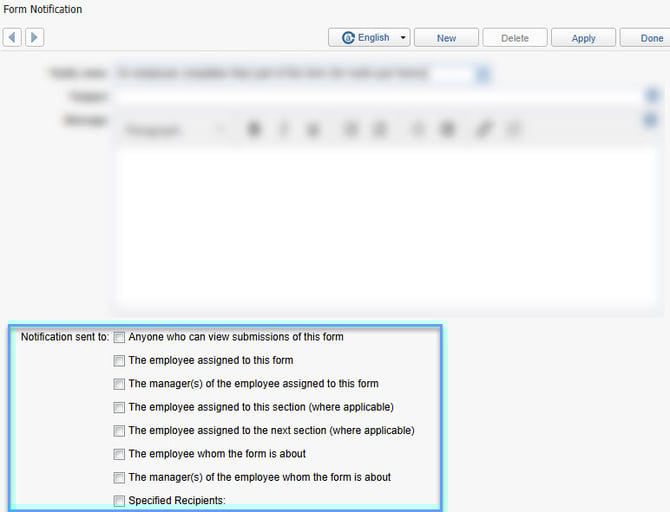
1. Anyone who can view submissions of this form (based on permissions): This includes all users who have permission to view form submissions in the system.
Example: If the form is part of an HR process and HR staff have view permissions, all HR team members will receive the notification when the form is completed.
2. The employee assigned to this form: The individual currently responsible for completing the form.
Example: If John is assigned a performance review form, he will receive a notification when the form is ready to start or approaching its due date.
3. The manager(s) of the employee assigned to this form: The direct manager(s) of the person completing the form.
Example: If John’s manager is Sarah, Sarah will receive a notification when John completes the form or if the form becomes past due.
4. The employee whom the form is about: Used in cases where the form concerns another employee (e.g., performance review about a team member).
Example: If John is filling out a review about Emily, Emily will receive a notification when the review is completed.
5. The manager(s) of the employee whom the form is about: The manager(s) of the employee who is the subject of the form.
Example: If Emily’s (from previous example) manager is Alex, Alex will receive a notification when the review about Emily is completed.
6. The employee assigned to this section (for multi-user forms): For forms divided into sections assigned to different users, this option notifies the person responsible for the current section.
Example: If Section 2 of a compliance form is assigned to Maria, she will receive a notification when it’s her turn to complete that section.
7. The employee assigned to the next section (for multi-user forms): Notifies the person who will complete the next section in a multi-user form workflow.
Example: If Maria finishes Section 2 and Section 3 is assigned to David, David will receive a notification that his section is ready.
8. Specified Recipients (available after clicking Apply): Allows you to manually select specific users to receive the notification, regardless of their role in the form.
Example: If you want the HR Director to be notified whenever a form is completed, you can add them as a specified recipient.
---------------------------------------------------------------------
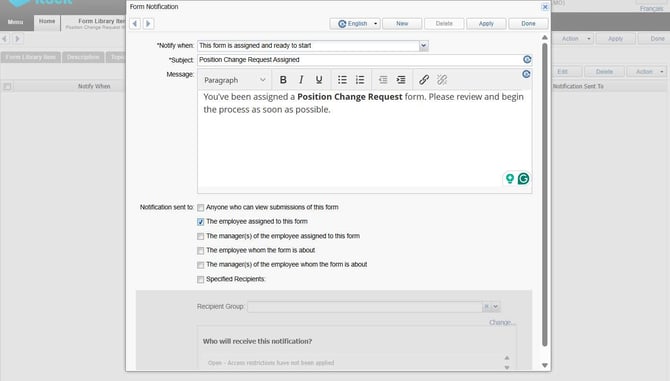
Notification Example 1: Form Assigned and Ready to Start
-
Trigger: This form is assigned and ready to start
-
Subject: Position Change Request Assigned
-
Message: You’ve been assigned a Position Change Request form. Please review and begin the process as soon as possible.
-
Recipients: The employee assigned to this form
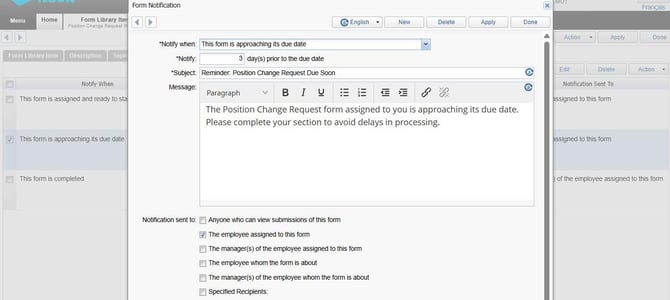
Notification Example 2: Form Approaching Due Date
-
Trigger: This form is approaching its due date
-
Notify: 3 day(s) prior to the due date
-
Subject: Reminder: Position Change Request Due Soon
-
Message: The Position Change Request form assigned to you is approaching its due date. Please complete your section to avoid delays in processing.
-
Recipients: The employee assigned to this form
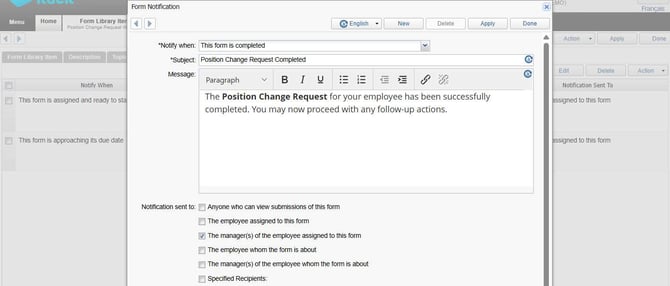
Notification Example 3: Form Completed
-
Trigger: This form is completed
-
Subject: Position Change Request Completed
-
Message: The Position Change Request for your employee has been successfully completed. You may now proceed with any follow-up actions.
-
Recipients: The manager(s) of the employee assigned to this form