Some forms need to be completed regularly - monthly inspections, annual reviews, and onboarding checklists. With iTacit’s Scheduling feature, you can automate when forms are assigned, when they’re due, and how often they repeat. This helps ensure timely completion and removes the need for manual follow-ups.
-
Go to Menu > Library > Form Library Items
-
Select the Library Item you want to edit
-
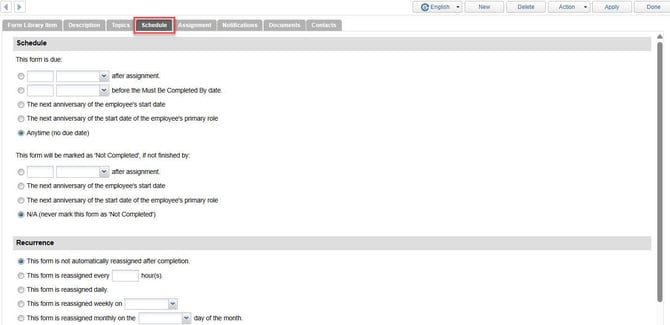
Click on the Schedule tab
-
Define the Schedule Settings. You’ll be able to configure:
- Due Date: Specifies when the form must be completed. Options include:
- A certain number of days after the assignment.
- A certain number of days before the “Must Be Completed By” date.
- On the next anniversary of the employee’s start date.
- On the next anniversary of the start date of the employee’s primary role.
- Anytime (no due date) for forms without a deadline.
- Change Status to "Not Completed": Determines when the form will be marked as Not Completed if the user does not finish it by the due date. Options mirror the due date settings:
- After a set number of days.
- On the next anniversary of employment or role start date.
- Or N/A (never mark as Not Completed).
- Recurrence: Controls how often the form should be reassigned after completion. Options include:
- No recurrence (form is assigned only once).
- Reassign every set number of hours.
- Reassign daily, weekly, or monthly on a specific day.
5. Click Apply to save your schedule settings
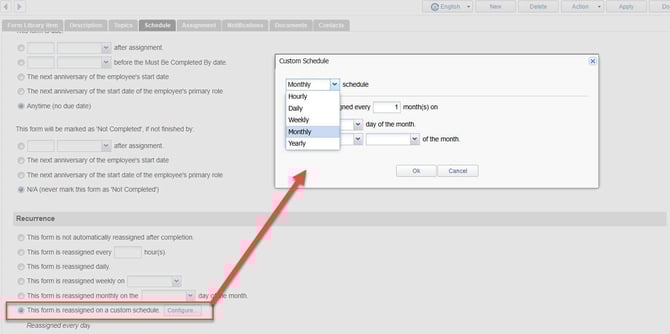
Custom Recurrence Setup
In addition to standard recurrence options (daily, weekly, monthly, yearly), iTacit allows you to configure custom recurrence rules for more precise scheduling. This is especially useful for forms that need to be reassigned on a specific day of the month or at a custom interval.
-
Open the Schedule Tab in the Form Library Item
-
Select the option: This form is reassigned on a custom schedule
-
Click Configure… to open the custom recurrence window
-
Choose a recurrence type from the dropdown (Hourly, Daily, Weekly, Monthly, Yearly)
-
Click Apply to save your custom schedule.