
Content
- How To Download the DNA Uploader Template
- How To Use the DNA Uploader
- How To Upload Completed DNA Uploader
- Step-by-Step Guide to Bulk Uploading Employees
- Common Upload Errors and How to Fix Them
--------------------------------------------------------------------------
Managing employee data at scale can be time-consuming if done manually. iTacit’s DNA Upload Tool streamlines this process by allowing administrators to upload, update, or deactivate multiple employee records in one action using a structured Excel template.
How To Download the DNA Uploader Template
To access the DNA Uploader Template, navigate to the designated location in the menu.
Start by clicking on "Menu" to reveal the main options. From there, select "Employees" to access the employee-related features. Within the Employees section, locate and click on "Employee Uploads." This will take you to the specific area where you can upload employee-related data.
Once in the Employee Uploads tab, look for the option to download the DNA Uploader Template. This template serves as a standardized format for uploading DNA-related information for employees.

To tailor the DNA Uploader Template to your specific business unit, be sure to search for and select your Business Unit before proceeding with the download. After selecting the appropriate Business Unit, click on the "Select" button to confirm your choice. This step ensures that the DNA Uploader Template is customized to your specific organizational structure, including the Business Unit codes and Job Classifications.

Note: This template does not provide the ability to create new Business Units or Job Classifications, please use the Configuration Upload Tool to create or modify Business Units and Job Classifications.
--------------------------------------------------------------------------
How To Use the DNA Uploader
DNA Upload Template will be downloaded to your computer. This template includes additional reference sheets; containing Business Units, Job Classifications, and Roles information. The information in these sheets may be copied into your Employee tab to reduce errors in data entry.
Open the template and proceed to the Employees tab. Add employees and their information to the workbook. Pay attention to mandatory columns that are marked with the asterisk (*).

The Instructions and Example tabs within the spreadsheet will help you to understand each column's requirements as well as see an example of what the completed spreadsheet should look like:


Note: When downloading the template, Excel may open the document in Protect Mode. This may prevent you from re-sizing your document or saving/closing. To disable this setting, in Excel go to File > Options > Trust Center > Trust Center Settings > Protected View, and then uncheck Enabled Protected View for files originating from the Internet. It is important to note that choosing to disable the Protected View feature within Excel also ensures that you no longer receive the warning upon opening any Excel file that has been downloaded.
--------------------------------------------------------------------------
How To Upload Completed DNA Uploader
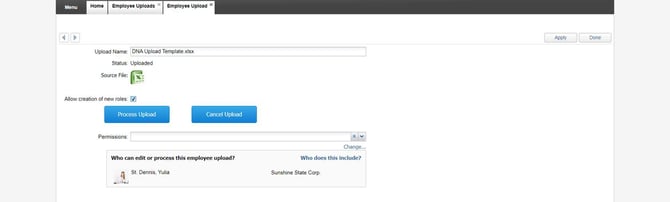
When your spreadsheet is ready, save the file on your computer. Click, drag and drop the spreadsheet to the upload window, or select the "Click to browse..." option and then select your file.

Select the Process Upload button to upload the file.
--------------------------------------------------------------------------
Step-by-Step Guide to Bulk Uploading Employees
1. Log in to the iTacit Admin site
2. Navigate to Menu > Employees > Employee Uploads.
3. Click Download Template in the top-right corner of the Employee Uploads screen.
4. Before downloading, select your Business Unit to ensure the template includes the correct codes and classifications.
5. Open the downloaded Excel file and navigate to the Employees tab. Enter employee data into the appropriate columns.
-
Mandatory fields are marked with an asterisk (*)
-
Use reference sheets to copy valid values for Business Units, Job Classifications, and Roles
6. Once your spreadsheet is ready:
-
Save the file locally
-
Return to the Employee Uploads screen
-
Drag and drop the file into the upload window, or click Browse to select it manually
7. Select Process Upload button to upload the file.
8. Select OK.
--------------------------------------------------------------------------
Common Upload Errors and How to Fix Them
Bulk uploads are efficient, but only when the data is clean and correctly formatted. Below are common errors administrators may encounter when using the DNA Upload Tool, along with recommended solutions.
1. Missing Required Fields
Upload fails due to missing mandatory columns (e.g., First Name, Employee Number, Role)
-
Review the Instructions tab in the template
-
Ensure all required fields marked with an asterisk (* ) are filled
-
Double-check for blank cells in mandatory columns
2. Invalid Business Unit or Job Classification
Upload fails because the Business Unit or Job Classification does not exist in iTacit
-
Use the reference sheets in the template to copy valid values
-
If the required Business Unit or Job Classification is missing, create it first using the Configuration Upload Tool
-
Do not manually type values - copy/paste from the reference tabs to avoid typos
3. Duplicate Employee Numbers or Usernames
Upload is rejected due to duplicate identifiers
-
Ensure each employee has a unique Username
-
Use filters in Excel to check for duplicates before uploading
-
If re-uploading existing users, ensure the action is an update (M) - not a new entry (A)
4. File Format Issues
Upload fails due to incorrect file format or corrupted spreadsheet
-
Ensure the file is saved as an Excel workbook (.xlsx)
-
Avoid adding extra columns or changing column headers